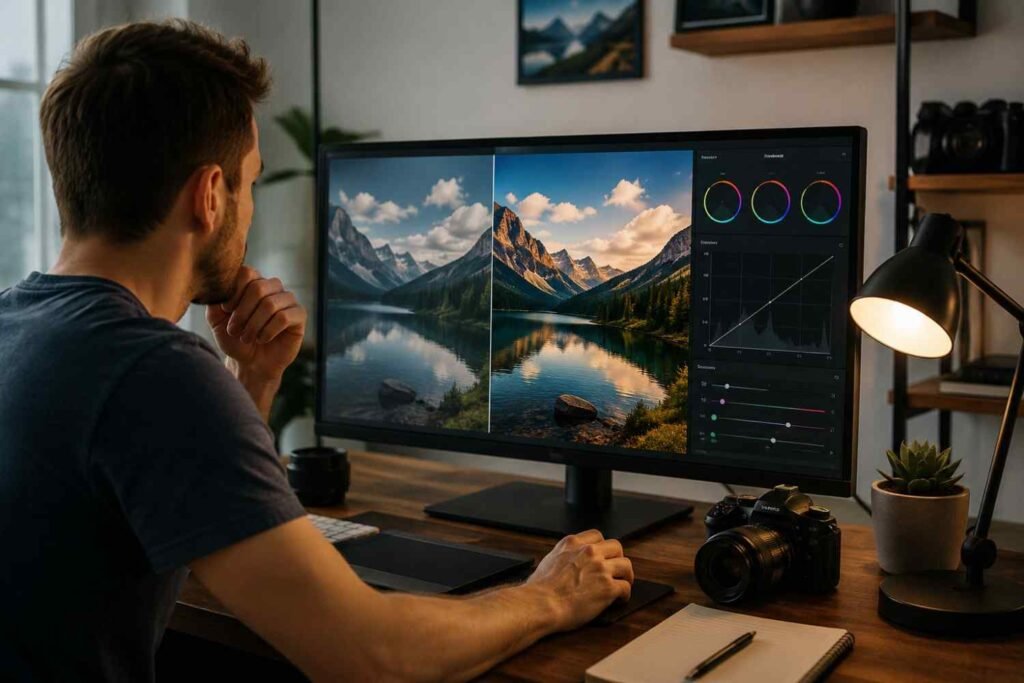

A video can look perfectly fine on your camera screen and still turn out rough, fuzzy, and noisy when you watch it later. That is usually when most creators start wondering, “why do my videos look grainy indoors?” I see this problem often with YouTube videos, product clips, online course recordings, real estate walkthroughs, and social media content filmed inside homes, offices, kitchens, and small studios.
The main issue is usually not the camera itself. Indoor spaces often do not provide enough clean light for the sensor, even when the room looks bright to your eyes. To compensate, the camera boosts ISO or digital gain, which artificially brightens the image but also creates visible digital noise.
That noise shows up as grain in shadows, skin tones, walls, and darker parts of the frame. Once you understand this, it becomes much easier to fix grainy indoor video with better lighting, smarter settings, and a few simple recording habits.
Why Indoor Videos Look Grainy Even in a Bright Room
Indoor spaces often fool creators because they feel bright in person. A living room lamp, ceiling light, or desk light may help you see clearly, but it may not give your camera enough clean light. Cameras need strong, even illumination, especially when shooting video indoors.
This is why your footage may look noisy even when the room does not seem dark. Your camera is not just recording what you see. It is trying to collect enough light through the lens and sensor. If the light is weak, uneven, or too far from the subject, the camera compensates by raising ISO. That is when video noise in low light becomes obvious.
Grain is most visible in shadows, dark walls, black clothing, hair, corners of the room, and underexposed backgrounds. If you brighten that footage later in editing, the grain often becomes worse.
What Causes Grainy Indoor Video?
The most common causes are high ISO, poor lighting, fast shutter speed, high frame rate, small camera sensors, narrow lens aperture, digital zoom, and heavy compression. I would not blame only the camera because even a good camera can look bad in a poorly lit room.
High ISO is one of the biggest culprits. ISO controls how sensitive your camera is to light. A low ISO creates a cleaner image, while a high ISO brightens the footage but adds artificial noise. This is why smartphone videos, webcam recordings, YouTube videos, podcast clips, and product demos often look grainy indoors.
Frame rate also matters. Many creators shoot at 60fps because they think it looks smoother, but indoors, that can create problems. A higher frame rate usually needs a faster shutter speed, which gives the sensor less time to gather light. That means the camera may raise ISO again, making the footage noisier.
Small camera sensors also struggle indoors. Smartphones, action cameras, webcams, and compact cameras have smaller sensors than many mirrorless or full-frame cameras. They can still shoot great video, but they need more light to avoid grain.
Best Camera Settings to Fix Grainy Indoor Footage

If you want cleaner indoor video, start with your frame rate. For most talking head videos, YouTube videos, online courses, product videos, interviews, and social media content, 24fps or 30fps is usually better than 60fps indoors. These settings allow your shutter to stay open longer and collect more light.
A good starting point is 24fps with a shutter speed around 1/50 or 30fps with a shutter speed around 1/60. This follows the common video rule of keeping shutter speed close to double your frame rate. If you shoot 60fps, your shutter may need to be around 1/120, which reduces light and can increase grain.
Next, open your aperture if your camera or lens allows it. A lower f-stop number, such as f/1.8 or f/2.8, lets in more light than f/4 or f/5.6. This can make a major difference indoors. Just remember that a very wide aperture can make focus harder, especially if you move while recording.
Then adjust ISO last. I like to keep ISO as low as possible while still getting a properly exposed image. ISO 100 to 400 is ideal when you have enough light, but some indoor setups may need more. The real goal is not to force ISO low and make the video dark. The goal is to add enough real light so your camera does not need to boost the signal aggressively.
How to Add Better Light Indoors
The fastest way to fix grainy indoor video is to add physical light. I always start there before changing camera settings. Move closer to a window during the day and face the light instead of placing the window behind you. If sunlight feels too harsh, soften it with a sheer curtain.
At night, do not depend only on ceiling lights. Overhead bulbs often create harsh shadows, tired-looking skin, and dull backgrounds. A softbox, LED panel, or ring light placed slightly above eye level can make the video look much cleaner. Even an affordable light can outperform an expensive camera in a dark room.
Room lights can help, but avoid mixing too many different color temperatures. A warm lamp, cool LED bulb, and daylight window can make your footage look yellow, blue, or green in different areas. If possible, use one main light source and set your white balance manually.
Why Phone Videos Look Grainy Indoors
Phone cameras are powerful, but they have small sensors. That is why your iPhone, Samsung Galaxy, Google Pixel, or Android phone may still produce grainy footage indoors. The phone tries to brighten the image automatically, and that automatic boost creates noise.
To improve phone video quality, use the main rear camera when possible because it usually performs better than the selfie camera. Avoid digital zoom because it reduces quality and makes grain more visible. Clean the lens before recording, lock exposure and focus, and record a short test clip before filming the full video.
You can also use manual camera apps to control exposure better. The Blackmagic Camera App for iPhone and Open Camera for Android can help you override automatic settings that often create grain-heavy indoor footage.
Why 4K Video Still Looks Grainy Indoors

Many creators assume 4K should always look sharp, but resolution does not fix poor lighting. A noisy 4K video is still noisy. In fact, 4K footage can make grain easier to notice because the image is larger and more detailed.
This matters for creators in the US who upload to YouTube, Instagram, TikTok, Facebook, LinkedIn, or online course platforms. These platforms compress video after upload. If your original footage is dark, noisy, or underexposed, compression can make it look even softer and blockier.
A clean 1080p video with good lighting can look better than a dark 4K video with high ISO. I would focus on lighting, exposure, and audio before worrying about resolution.
How to Fix Grainy Video After Recording
If you already recorded noisy footage, editing can help, but it cannot perform miracles. You can apply de-noise filters in Adobe Premiere Pro, DaVinci Resolve, Final Cut Pro, After Effects, CapCut, or other editing apps. Adobe Premiere Pro includes options like VR De-Noise, while DaVinci Resolve offers strong temporal noise reduction features in its paid Studio version.
Premium plugins can also help. Neat Video and Red Giant Magic Bullet Denoiser are popular tools for reducing grain while preserving detail. However, use them carefully. Too much noise reduction can make skin look plastic, products look smeared, and backgrounds look unnatural.
Avoid over-sharpening grainy footage because sharpening can make noise stand out even more. Also, do not brighten shadows too aggressively in post-production. If the footage was badly underexposed, lifting the shadows will usually reveal more noise.
Quick Indoor Video Fixes Before You Hit Record
Use this checklist when you need a fast setup before filming:
Face a window or soft light source.
Use 24fps or 30fps indoors.
Set shutter speed around double your frame rate.
Open your aperture to a lower f-stop if possible.
Add real light before raising ISO.
Avoid digital zoom on phones.
Clean your camera lens.
Lock exposure and focus.
Record a short test clip before the final take.
So, Why Do My Videos Look Grainy Indoors?

The real answer to “why do my videos look grainy indoors” is that your camera is trying to brighten a low-light scene electronically instead of capturing enough natural or physical light. That artificial boost creates digital noise. High ISO, fast shutter speed, 60fps recording, small sensors, narrow apertures, and poor lighting all make the problem worse.
I would fix the lighting first, then adjust the camera settings. Once you add soft light, lower ISO, use 24fps or 30fps, open the aperture, and avoid digital zoom, your footage will instantly look cleaner and more professional.
FAQs About Grainy Indoor Video
1. Why does my video look grainy in low light?
Your video looks grainy in low light because the camera raises ISO or digital gain to brighten the image. This artificial boost creates noise, especially in shadows and dark areas.
2. Does lowering ISO always fix grainy video?
Lowering ISO helps only if the video stays properly exposed. If the footage becomes too dark, brightening it later can make the grain worse. Add more light first, then lower ISO.
3. Is 60fps bad for indoor videos?
60fps is not bad, but it needs more light. Indoors, it often forces a faster shutter speed, which reduces light and can make the camera raise ISO. For most indoor videos, 24fps or 30fps is better.
4. Why does my phone video look grainy indoors?
Phone videos look grainy indoors because small sensors struggle in low light. Use more light, avoid digital zoom, clean the lens, lock exposure, and use the main rear camera when possible.
5. Can I remove grain from the video after recording?
You can reduce grain with de-noise filters and plugins, but you cannot fully repair badly underexposed footage. The best fix is to add better lighting before recording.
Final Thoughts
If you keep asking, “why do my videos look grainy indoors,” start by checking your light before blaming your camera. Indoor rooms often feel bright to us but look dark to a camera sensor. When your camera does not get enough real light, it boosts ISO or gain and creates digital noise.
The easiest fix is to add soft light, film at 24fps or 30fps, use the right shutter speed, open your aperture, avoid digital zoom, and keep ISO as low as your exposure allows. Once the footage is clean, you can improve the final look further by learning how to color grade videos without over-brightening shadows or making noise more visible.
With these simple changes, your indoor videos can look sharper, cleaner, and more professional without a big production budget.