

A photograph can look rich and perfectly balanced inside an editing program, then appear noticeably flatter after it reaches a website. The file may not be damaged at all. The problem can simply be a mismatch between the color space used during editing and the one expected by the viewing environment.
For most creators choosing the best color spaces for digital web output, one option remains the safest default: sRGB. Newer wide-gamut displays make Display P3 increasingly useful, but wider does not automatically mean better for every website.
Understanding where each space belongs can prevent frustrating color shifts before an image ever reaches an audience.
Why Color Space Changes What Viewers See
The International Color Consortium identifies sRGB as the IEC 61966-2-1 standard and specifies its RGB primaries, D65 white point, and transfer characteristics. ICC profiles essentially provide software with the information needed to interpret and transform those colors correctly.
The Library of Congress similarly emphasizes specifying a color space and retaining color-management information. Its guidance for still images prefers embedded ICC profiles for RGB images and recommends sRGB where other color-management methods have not been used.
For web publishers, the practical question is therefore not which space can hold the most colors. It is which space delivers predictable results across the broadest range of devices.
sRGB Is Still the Safest Web Standard
For ordinary websites, ecommerce images, portfolios, blogs, email graphics, thumbnails, and social content, I would export to sRGB unless there is a clear reason not to.
The W3C’s current CSS Color specification treats sRGB as the default color space for traditional CSS colors. It also says untagged images should be treated as sRGB for compatibility. That legacy is sRGB’s greatest strength.
Browsers, operating systems, inexpensive laptops, office monitors, tablets, and phones have spent decades working around an sRGB-centered ecosystem. Even where modern software supports wider gamuts, an sRGB file remains highly portable.
W3C accessibility guidance goes further, noting that almost all systems used to view web content assume sRGB encoding unless another color space is explicitly involved. That makes sRGB less glamorous than some alternatives, but extremely dependable.
Display P3 Is the Strongest Wide-Gamut Web Alternative
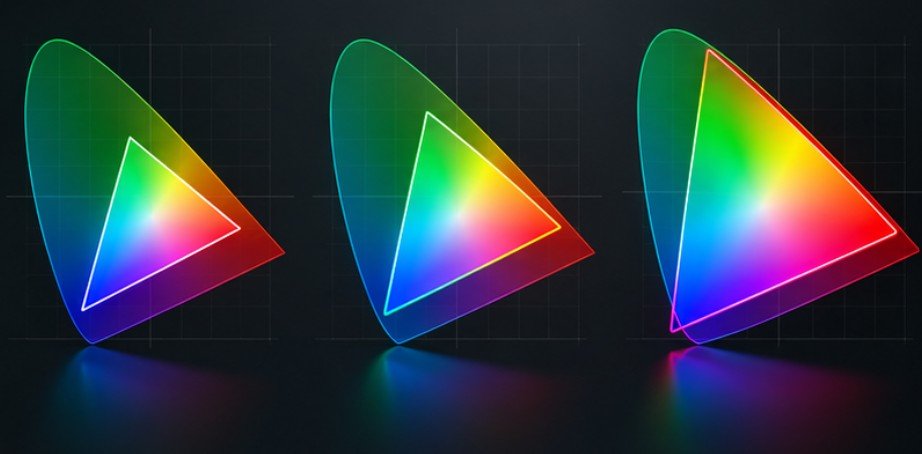
Display P3 expands the range of colors that can be represented, particularly highly saturated reds and greens.
According to the current W3C CSS Color Module, the estimated gamut volume of Display P3 is about 1.233 million Lab units compared with roughly 0.820 million for sRGB. That works out to about 50 percent more gamut volume by that measurement—not simply a universal percentage increase in every visible color.
This distinction is important because claims that P3 is “26 percent larger” or another fixed percentage often depend on how gamut size is measured.
Where Display P3 makes sense
P3 becomes valuable when a creative project contains unusually saturated colors that genuinely exceed sRGB. Bright product photography, vivid digital illustrations, luxury branding, colorful food imagery, and some nature photography can benefit.
Modern CSS even supports colors such as:
color(display-p3 1 0.2 0.1)
The W3C specification says Display P3 is typical of current wide-gamut monitors and notes that many modern displays can reproduce all or nearly all of its gamut.
Still, I would treat P3 as an enhancement rather than blindly replacing sRGB everywhere.
A visitor using an older or narrower-gamut display cannot suddenly reproduce colors outside that screen’s physical capabilities. Browser color management may map the color appropriately, but the display remains the final limitation.
Why Adobe RGB Usually Belongs Somewhere Else
Adobe RGB is popular in professional photography because its broader gamut can preserve colors that may be useful in sophisticated editing and print workflows.
That does not make it the ideal delivery format for ordinary webpages.
A photographer might edit a master image in Adobe RGB or another large working space to preserve information, then convert a separate output copy to sRGB for online publishing.
That distinction between working space and delivery space solves much of the confusion surrounding the best color spaces for digital web output.
Adobe RGB is useful upstream. sRGB is normally safer downstream. The same principle applies to ProPhoto RGB. Its enormous gamut can be valuable while editing high-bit-depth photographic masters, but exporting casual web graphics directly in ProPhoto RGB adds complexity without guaranteeing visible benefits to the reader.
NIST documentation also identifies sRGB as a preferred external color space for certain JPEG workflows, reinforcing how broadly the standard has been adopted for interoperable digital imagery.
Color Space and CSS Color Format Are Not the Same Thing

Another common mistake is comparing sRGB with HEX or HSL as though they were equivalent alternatives. They are not.
HEX, rgb(), and traditional hsl() are ways of expressing colors in CSS, and conventional versions of those formats represent sRGB colors. Modern CSS adds more powerful models including oklab(), oklch(), and the color() function. OKLCH is particularly useful for design systems because its lightness, chroma, and hue controls behave more intuitively than traditional HSL when designers need visually consistent variations.
A designer could therefore use OKLCH to build a palette while still supplying appropriate fallbacks or gamut mapping for displays with different capabilities.
A Reliable Web Export Workflow
A simple process eliminates most online color surprises.
1. Keep the strongest master file
Do not permanently reduce your original RAW, TIFF, PSD, or high-bit-depth editing file to a smaller gamut merely because the final destination is a webpage. Maintain the flexible master and create separate output copies.
2. Convert rather than assign
When exporting, convert the image into sRGB. Assigning sRGB to Adobe RGB pixel values changes their interpretation without correctly translating the colors. Converting recalculates the values so their appearance is preserved as closely as possible.
The right editing software can make it easier to manage color profiles, adjust image tones, and prepare consistent exports for online publishing. Creators who regularly process images for commercial use can also explore these best image editing tools for stock creators when choosing tools for their workflow.
3. Embed the profile
Where your export software provides the option, include the sRGB profile. ICC guidance says profiles connect color encodings and help color-managed systems perform transformations between them.
4. Inspect highly saturated colors
Conversion from a wide gamut into sRGB can force some colors back inside the smaller gamut. Pay particular attention to vivid greens, intense reds, neon colors, flowers, cosmetics, clothing, and artificial lighting.
5. Test outside the editor
Open the exported image in multiple browsers and, ideally, check it on a desktop monitor and smartphone. Do not judge web output solely inside Photoshop, Lightroom, or another color-managed editing environment.
The Display Matters as Much as the File

No color profile can make an inaccurate screen accurate.A heavily blue display will still look blue. Excessive brightness can cause creators to edit photographs too dark. An oversaturated monitor can encourage them to reduce saturation unnecessarily. For color-sensitive professional work, display calibration and profiling therefore remain valuable.
The ICC specifically notes that sRGB may be a suitable calibration or working target when a display is primarily used to create images for the web.
Accurate color reproduction depends on more than the display itself; the editing process also influences how faithfully an image retains its intended appearance. Photographers can refine their post-processing workflow by exploring this professional photo editing strategy when preparing images for consistent presentation across different screens.
Composition also influences how audiences perceive color. Strong framing, tonal separation, and subject placement can matter more than squeezing a few additional saturated colors from a wider gamut. Creators building those fundamentals can also review these rule of thirds photography tips for beginners.
Frequently Asked Questions
1. What color space should I use for website images?
Use sRGB for most website photography, ecommerce images, graphics, and general online publishing. It offers the most predictable appearance across browsers, displays, and operating systems.
2. Is Display P3 better than sRGB?
Display P3 can reproduce a wider range of saturated colors, but that advantage matters only on compatible displays and workflows. sRGB remains safer when universal consistency is the priority.
3. What are the best color spaces for digital web output?
sRGB is the best universal choice. Display P3 is useful for controlled wide-gamut experiences, while Adobe RGB and ProPhoto RGB are generally better suited to editing or specialized production workflows.
4. Should I embed an ICC profile in web images?
Usually, yes. An embedded profile tells color-managed software how the image’s RGB values should be interpreted and reduces ambiguity during display.
Final Takeaway
More color is not automatically more accurate color. The smartest web workflow separates the flexible editing master from the file people actually receive.
I would preserve wide-gamut information while editing, convert mainstream web exports to sRGB, embed the correct profile, and test the finished file outside the editing application. Display P3 deserves serious consideration where richer color is a deliberate part of the experience, but it should solve a visible problem rather than simply sound more advanced.
The best web color space is ultimately the one that survives the trip from your screen to someone else’s.