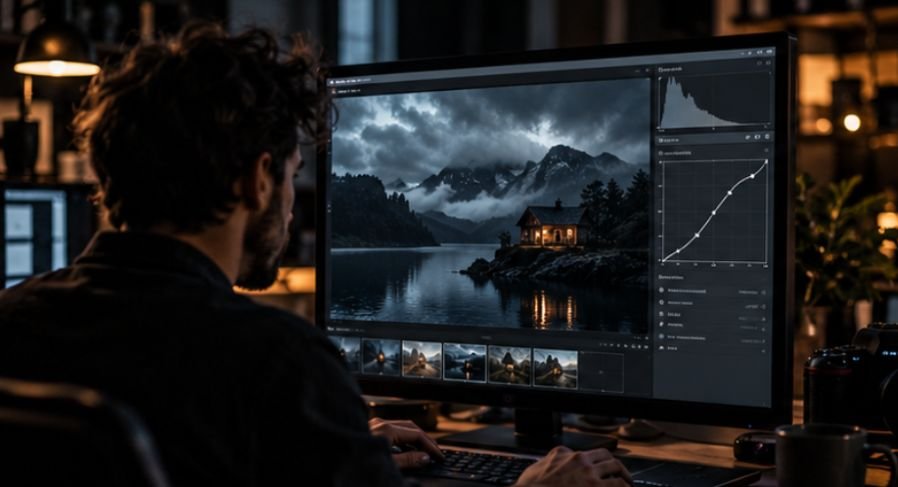
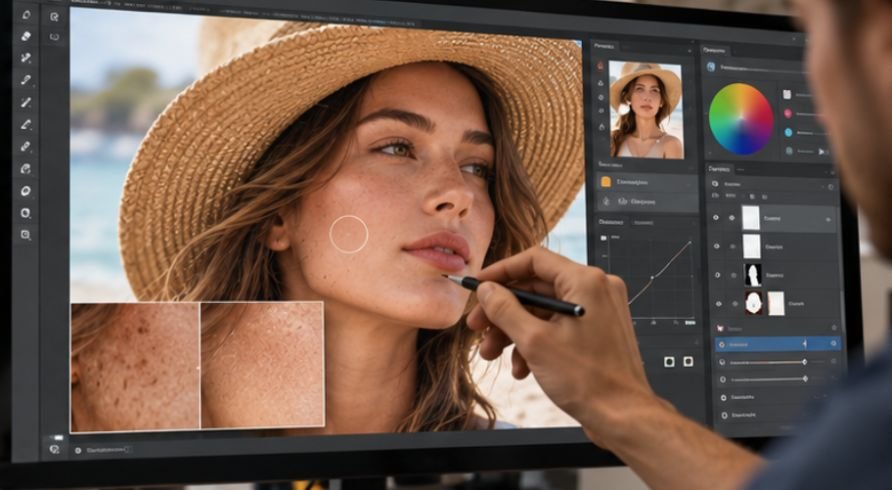
A technically beautiful photograph can still fail as stock if the workflow behind it is slow, inconsistent, or strips useful metadata. Stock creators are not simply editing pictures; they are preparing searchable, commercially usable digital assets, often hundreds at a time.
That changes how I judge the best image editing tools for stock creators. The winner is not automatically the program with the longest feature list. A practical stock workflow needs accurate RAW processing, efficient batch editing, dependable cleanup tools, sensible color management, metadata support, and exports that survive agency review. Here is how the major options compare.
What Stock Creators Actually Need From an Editor
Editing one portfolio image and preparing 200 stock files are very different jobs. Stock production rewards repeatability.
A useful editor should let you correct exposure and white balance across a series, synchronize adjustments, remove sensor dust, perform selective masking, inspect images at full resolution, and export consistently without repeatedly rebuilding settings.
Metadata matters too. The International Press Telecommunications Council says its photo metadata standard is widely used across photographers, photo agencies, news organizations, libraries, and other image-based industries. Its fields can carry captions, keywords, creator details, locations, and rights information.
That makes metadata support more than administrative housekeeping. For stock contributors, it is part of discoverability and asset management.
The Best Image Editing Tools for Different Stock Workflows
Adobe Lightroom Classic: Best for High-Volume Libraries
Lightroom Classic makes the strongest case for photographers producing large batches of related photographs.
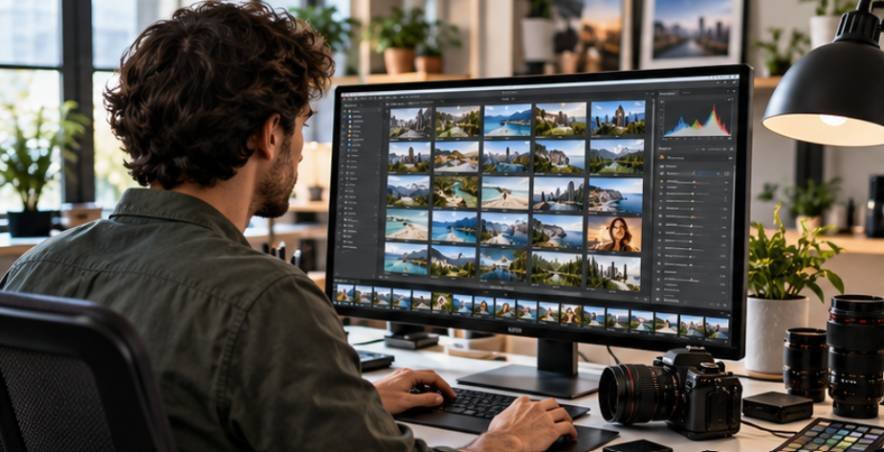
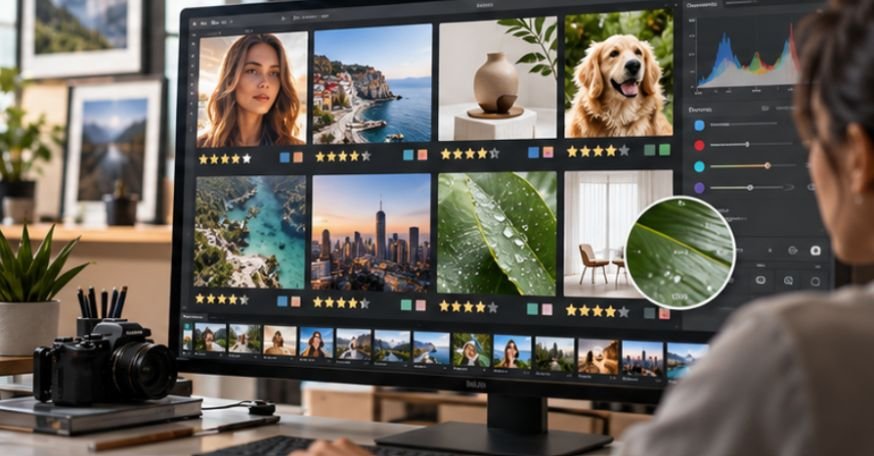
Its real advantage is workflow speed. You can organize thousands of RAW files, rate and reject images, synchronize exposure and color adjustments across a shoot, create presets, apply local masks, and export multiple deliverables without opening every file individually.
That makes it particularly useful for travel, lifestyle, food, business, and location-based stock shoots where several commercially useful variations may come from one session.
Color grading should still remain controlled. Stock buyers usually need flexible files rather than a highly stylized look. I would concentrate first on believable skin tones, restrained saturation, usable highlight detail, and clean neutral colors. Creators refining that part of their workflow can use these practical color grading tips as a foundation.
Adobe Photoshop: Best for Precision Cleanup
Photoshop becomes valuable when a photograph needs more than global RAW adjustments. Layers, masks, selections, retouching tools, compositing features, and generative editing make it suitable for removing difficult distractions, rebuilding small areas, extending backgrounds, correcting objects, and preparing images that require pixel-level control.
For stock creators, restraint matters. Removing sensor dust or an unwanted cable can improve an image. Fundamentally changing documentary or editorial content can create authenticity problems.
A repeatable Photoshop editing workflow also reduces the temptation to overprocess each image differently.
Capture One Pro: Best for Studio and Tethered Production
Capture One is particularly attractive to commercial, food, fashion, still-life, and product photographers working while connected to a computer.
Strong tethering allows creators and clients to inspect captures on a larger display during production rather than discovering technical problems after a shoot. Its color tools also provide detailed control over specific color ranges and skin tones.
The drawback is that creators who primarily shoot casual outdoor stock may not benefit enough from its studio-oriented strengths to justify adding another application to their workflow.
Affinity Photo: Best Subscription-Free Advanced Editor
Affinity Photo is a compelling option for photographers who want sophisticated layer-based editing without building their workflow around a recurring Photoshop subscription.
It supports RAW development, detailed retouching, masking, HDR work, panorama creation, and focus merging. That makes it capable enough for substantial commercial editing rather than simply quick adjustments.
Its limitation for heavy stock production is workflow organization. Creators managing tens of thousands of photographs may still prefer a dedicated cataloging application alongside it.
DxO PhotoLab: Best for RAW Quality and Optical Corrections
DxO PhotoLab is worth considering when image quality begins with technically demanding RAW files.
Its strengths include camera-and-lens-specific corrections, noise reduction, lens sharpening, and sophisticated RAW processing. Wildlife, architectural, nighttime, and high-ISO stock photographers may find these capabilities particularly useful.
However, exceptional RAW processing does not automatically make something the best complete stock-production system. Metadata organization, catalog speed, retouching depth, and agency preparation still matter.
GIMP: Best Free Desktop Option
GIMP remains one of the most capable free desktop image editors available.
It supports layers, masks, selections, cloning, healing, transformations, and numerous plugins. For new contributors building a stock portfolio before committing to paid software, that is valuable.
The compromise is efficiency. Its workflow can feel less integrated for photographers who need seamless RAW cataloging, sophisticated automated masking, synchronized batch processing, and large-library management.
A Five-Minute Test for Choosing Your Editing Software
Rather than comparing feature lists, test each application using 20 real stock images.
First, import a mixed shoot containing bright scenes, shadows, people, detailed objects, and several near-duplicates. Time how quickly you can identify the strongest files.
Next, correct one image and synchronize those adjustments across similar photographs. Check whether individual frames can then be fine-tuned without destroying the batch settings.
After that, inspect every photograph at 100 percent. Look for noise, sensor spots, halos, chromatic aberration, excessive sharpening, missed masking edges, and compression artifacts.
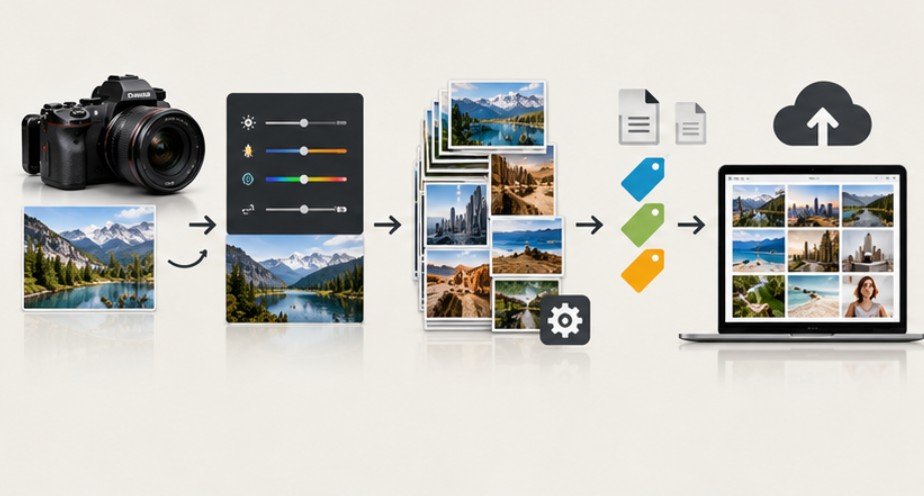
Then enter a title, caption, creator information, copyright details, and relevant keywords. Export the files and confirm that the metadata remains intact.
Finally, open the exported images somewhere outside the editor. This exposes color-profile, sharpening, resizing, and metadata problems that can remain invisible inside the original application.
The National Archives notes that digital photographs can contain photographic metadata like EXIF, XMP, and IPTC metadata, with IPTC fields supporting information such as creators, copyright details, captions, and descriptions.
Do Not Let Editing Destroy a Good Master File
Stock creators often concentrate on the JPEG they plan to upload and forget about the long-term master.
The Library of Congress recommends maintaining high-quality digital image characteristics such as the highest available resolution, strong bit depth, and embedded color information for preservation-oriented workflows. TIFF is among its preferred digital photograph formats.
That does not mean every stock submission should be a TIFF. Agencies frequently specify their own submission formats. It means creators should preserve strong originals and produce agency-specific exports from those masters rather than repeatedly editing compressed copies.
Color profiles deserve similar attention. The International Color Consortium explains how profiles help software interpret color across cameras, working spaces, displays, and output devices.
Stock Cleanup Requires More Than Making Images Attractive
A finished stock photograph needs to survive both technical inspection and commercial scrutiny. Check horizons, noise, focus, dust, halos, banding, clipped highlights, color casts, recognizable branding, accidental personal information, and distracting objects before export.
Rights also deserve attention. The U.S. Copyright Office confirms that photographic works can receive copyright protection and provides specific registration procedures for published and unpublished photographs.
Model releases, property releases, trademark issues, editorial rules, and AI-content policies vary by agency, so editing software cannot make those decisions for you.
Creators accustomed to producing Instagram or brand content should also recognize that stock has different goals. A dramatic preset may perform well on social media but limit the usefulness of a licensing image. The distinction becomes clearer when comparing stock preparation with how creators edit photos for social media.
Frequently Asked Questions
1. What are the best image editing tools for stock creators?
Lightroom Classic and Photoshop offer the broadest professional workflow, while Capture One, DxO PhotoLab, Affinity Photo, and GIMP suit different needs involving tethering, RAW quality, subscriptions, and budget.
2. Should stock photos be heavily edited?
Usually not. Correct technical problems and distracting elements while keeping colors, textures, skin, and lighting believable unless a particular creative-stock category intentionally requires stronger styling.
3. Do stock photographers need Photoshop?
Not necessarily. Lightroom or another RAW editor can handle many submissions. Photoshop becomes valuable for complicated cleanup, masking, composites, difficult object removal, and pixel-level corrections.
4. Should I add metadata before uploading stock photos?
Yes, where your agency workflow supports it. Useful IPTC metadata can include captions, keywords, creator information, copyright details, and other descriptive data that travel with compatible files.
Final Takeaway
The most expensive editor will not rescue a weak stock workflow. What matters is how reliably software helps you select strong photographs, process RAW files, maintain believable color, remove genuine technical distractions, preserve metadata, and create consistent exports.
For most high-volume photographers, I would begin with Lightroom Classic and add Photoshop only when detailed retouching demands it. Specialists may get more value from Capture One, DxO, Affinity Photo, or GIMP. The best tool is ultimately the one that leaves you spending less time repairing files and more time producing images buyers can actually use.