A 6,000 × 4,000 photo contains 24 million pixels. Shrink it to 1,500 × 1,000, and millions of those pixels must disappear. Surprisingly, that usually causes far fewer visible problems than trying to turn a tiny photo into something four times larger.
That difference is the key to understanding how to resize an image without losing quality. Making an image smaller gives software real visual information to work with. Making it larger requires the program to estimate what missing pixels should look like.
The safest approach is therefore not simply choosing a better resize button. It means protecting the original file, preserving proportions, selecting the right resampling method, and matching the final pixel dimensions to how the image will actually be used.
Resizing and Resampling Are Not the Same Thing
A digital image is a grid of pixels. The National Archives describes digital still images as raster images containing tonal and brightness information stored as a grid of picture elements.
That distinction matters because there are two different operations commonly described as “resizing.”
Changing the physical print dimensions without altering pixel dimensions is resizing without resampling. No pixels disappear or get created.
Changing a 4,000-pixel-wide photograph into a 1,200-pixel-wide photograph is resampling. Software must recalculate the image and remove pixels.
The Smithsonian’s guidance on image resolution similarly explains that resolution concerns the density of pixels or printed dots and that greater useful resolution can produce a crisper result.
Understanding that difference prevents one of the most common editing mistakes: changing PPI and expecting a low-resolution web image to suddenly contain more detail.
Why Making an Image Smaller Usually Looks Better
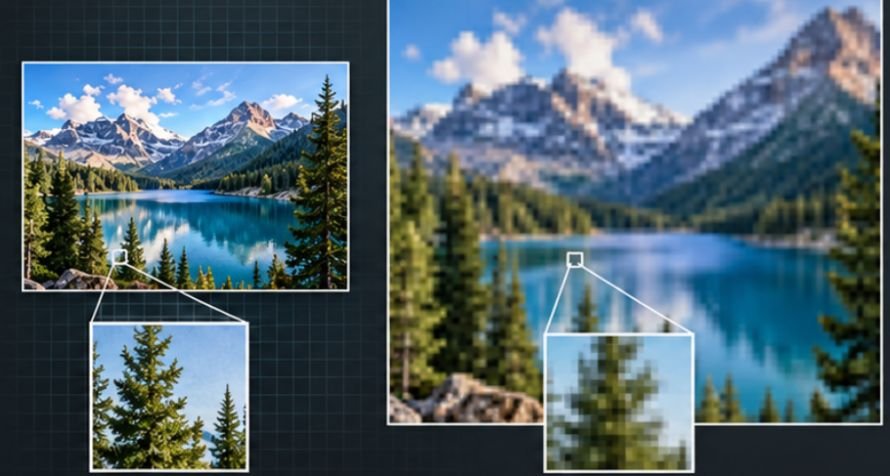
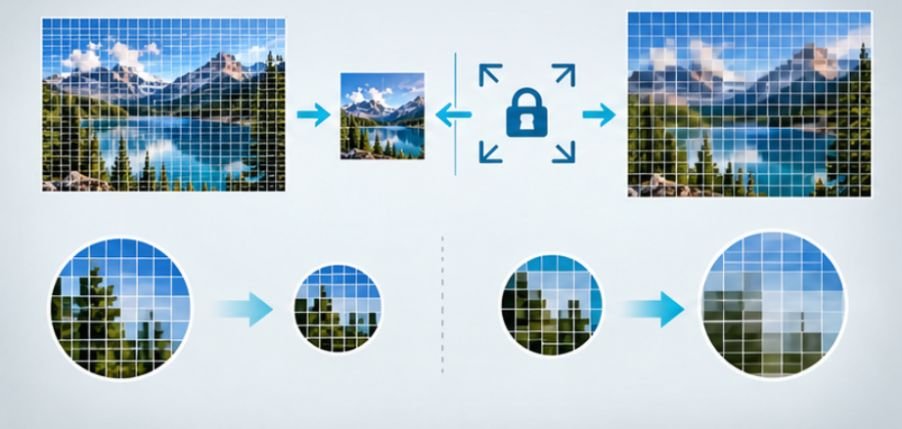
Downscaling begins with existing information. Imagine four neighboring pixels containing slightly different shades of blue. During reduction, a good resampling algorithm can calculate a representative value for the smaller output. Some information disappears, but the new pixel is based on actual information captured by the camera.
Upscaling has the opposite problem. If you enlarge a 600 × 400 image to 2,400 × 1,600, the software needs many pixels that never existed. Traditional interpolation estimates their values from neighboring pixels. Modern AI enhancement can make more sophisticated predictions, but it still cannot recover authentic detail that the original camera failed to capture.
That is why a slightly soft face does not suddenly reveal genuine eyelashes simply because an AI upscaler quadruples the file dimensions.
The Five-Step Quality-Preserving Resize Method
1. Start With the Largest Original Available
Never begin with a photograph already downloaded from social media, copied from a messaging app, or repeatedly exported as JPEG if the camera original is available.
Keep the RAW, TIFF, PNG, PSD, or highest-quality original as your master. The Library of Congress maintains extensive documentation on still-image formats precisely because file characteristics and preservation choices affect how digital images survive future processing.
Make your resize from a copy rather than replacing that master. For a broader editing workflow, FocalPool’s professional photo editing strategy explains why maintaining a clean source file matters throughout post-production.
2. Calculate the Dimensions You Actually Need
More pixels are not automatically better. If a website displays an image at roughly 1,200 pixels wide, exporting a 7,000-pixel-wide photograph can produce an unnecessarily heavy file. The website, browser, or content-management system may resize it anyway. For print, the calculation is different:
Required pixels = print size in inches × desired PPI
For example, an 8 × 10-inch print at 300 PPI ideally uses roughly 2,400 × 3,000 pixels.
For screens, focus primarily on pixel dimensions rather than obsessing over whether the metadata says 72, 96, or 300 PPI.
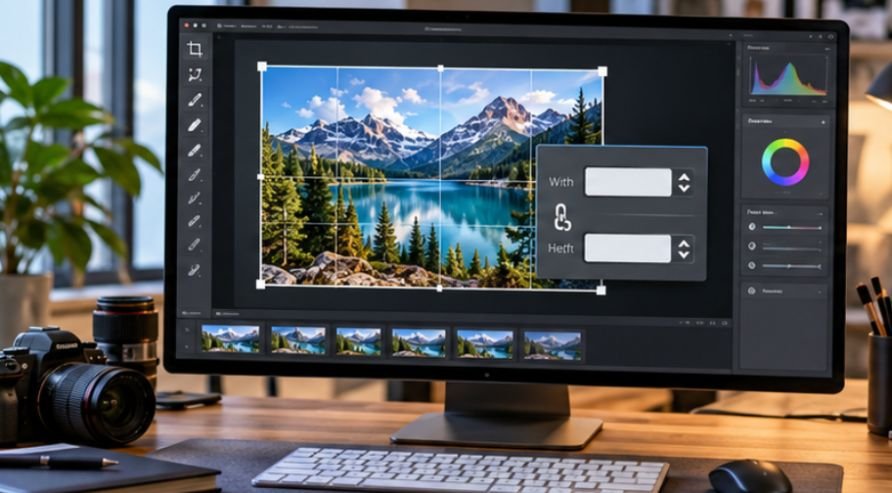
3. Lock the Aspect Ratio Before Changing Anything
A 3:2 photo stays proportional only when width and height change together.
Turn on settings labeled “Lock Aspect Ratio,” “Constrain Proportions,” or represented by a chain-link icon.
If a 6,000 × 4,000 image is reduced proportionally to 1,500 pixels wide, its height should become 1,000 pixels. Typing 1,500 × 1,200 instead stretches the photograph vertically.
People become taller, circles turn into ovals, and products no longer have realistic proportions.
Cropping is the better solution when a different shape is required.
Choose Resampling Based on What You Are Doing
Resampling algorithms calculate new pixel values differently. For ordinary photography, bicubic or similar high-quality interpolation is reliable. Some software provides separate algorithms optimized for reduction and enlargement.
Adobe Photoshop, for example, currently offers Bicubic Sharper for reductions and Preserve Details 2.0 for enlargement. The latter is designed to preserve edges and detail while allowing noise reduction.
Nearest-neighbor interpolation behaves differently. It keeps hard pixel boundaries, making it useful for pixel art and certain graphics but generally unattractive for photographs.
If you’re still building confidence with these controls, the beginner photo editing guide provides useful context for making edits without damaging the underlying photograph.
Don’t Resize the Same File Repeatedly
A popular tip suggests shrinking photographs gradually in several steps. Modern software generally makes that unnecessary. Every resampling operation recalculates pixel information. Repeated resizing can therefore introduce cumulative changes instead of protecting the photograph. A better workflow is to return to the full-resolution master and create each required size directly.
For example, generate your 2,000-pixel website version and 1,080-pixel social version separately from the original rather than creating the social image from the already-resized website file.
When AI Upscaling Actually Helps
AI upscaling becomes useful when enlargement cannot be avoided. Old family photographs, tightly cropped wildlife images, low-resolution archives, and small client files can sometimes benefit dramatically. AI systems analyze patterns such as hair, foliage, skin, edges, and texture and produce more convincing enlargements than basic interpolation.
But evaluate the result at 100% magnification. Look specifically at eyes, hair, lettering, architecture, fabric patterns, jewelry, and straight edges. These areas quickly expose invented texture or strange sharpening. AI enhancement should be treated as reconstruction rather than evidence recovery.
Choose the Final File Format Carefully
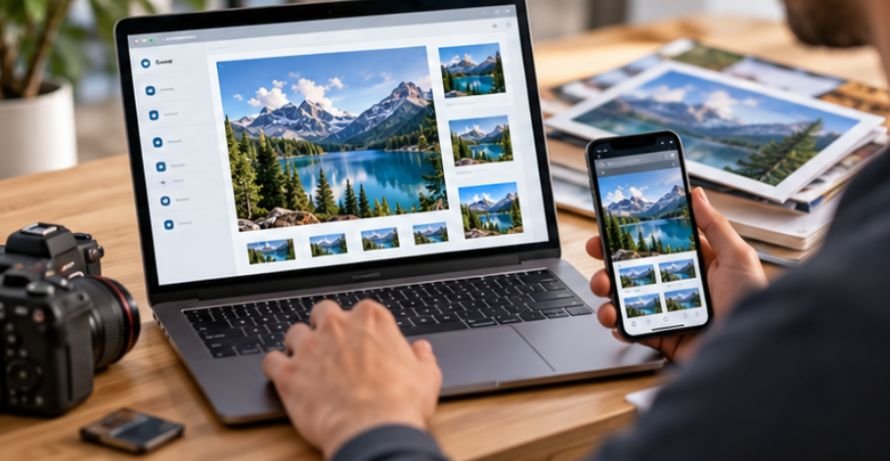
Resizing is only half of the process. Export settings can undo good work. JPEG uses lossy compression, making it efficient for photographs but capable of creating artifacts when repeatedly saved at aggressive compression settings.
PNG uses lossless compression. The World Wide Web Consortium’s current PNG specification describes it as a lossless format for raster images and supports grayscale, indexed-color, true-color, and transparency.
TIFF is another important high-quality raster option. The National Archives and other preservation institutions commonly use or recommend TIFF variants for archival image workflows.
Your editing style also affects how much sharpening and compression an image can tolerate. FocalPool’s guide to choosing the right editing style is useful before creating final export versions.
Common Resizing Problems and Their Fixes
The resized photo looks soft
Apply modest output sharpening after downscaling rather than aggressively sharpening the large original.
The photo looks stretched
Undo the resize, enable constrained proportions, and crop separately if you need another aspect ratio.
An enlarged image looks artificial
Reduce the enlargement percentage or compare standard interpolation against an AI upscaler. Sometimes accepting a smaller final size produces the more believable photograph.
The file is still enormous
Pixel dimensions, file format, compression, metadata, and bit depth can all influence file size. Resizing alone does not guarantee a lightweight export.
Frequently Asked Questions
1. Can I resize a JPEG without losing quality?
Reducing its dimensions carefully can preserve excellent visual quality, but JPEG compression is lossy. Avoid repeatedly opening, resizing, and resaving the same JPEG.
2. Does changing an image to 300 DPI improve quality?
Not by itself. Changing resolution metadata without adding pixel data does not create additional photographic detail.
3. What is the best way to enlarge a small photo?
Use the highest-resolution source available and compare a quality interpolation algorithm with AI-assisted upscaling. Inspect fine details at 100% before exporting.
4. Should I resize before or after editing?
Perform most major edits on the high-resolution master, then resize for the final destination and apply output-specific sharpening afterward.
Final Takeaway
The biggest secret behind how to resize an image without losing quality is knowing when not to invent pixels. Start with the largest clean original, resize only to dimensions your destination actually requires, preserve the aspect ratio, and perform as little resampling as possible.
Downscaling is usually forgiving because software begins with real information. Enlargement is the difficult direction because missing information must be estimated, even with sophisticated AI tools.
Treat your original as the master, create purpose-built copies from it, and judge every export at its real viewing size. Good resizing is less about making files bigger or smaller than deciding exactly how many pixels the image truly needs.