
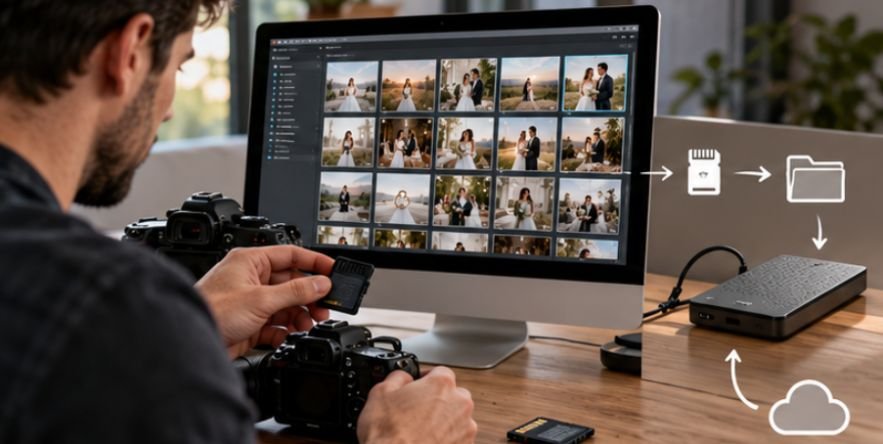
A photographer can spend more time retouching images a client never chooses than polishing the photographs that actually matter. That is the hidden cost of an inefficient photo editing workflow for client proofing.
The smarter approach separates selection from intensive retouching. You protect the original files, remove obvious failures, give proofs enough polish to represent your work accurately, collect selections in one controlled place, and reserve detailed editing for approved photographs. For portrait, wedding, commercial, branding, and event photographers across the US, that structure can save hours while making the client experience feel more professional.
Why Proofing Should Happen Before Heavy Retouching
Proofing is not simply sending clients a folder of photographs. It is an approval stage positioned between your initial edit and final production.
Imagine a corporate portrait session produces 700 frames. After culling, perhaps 90 photographs are genuinely strong. If the client ultimately purchases or approves 12, performing skin cleanup, object removal, detailed masking, and advanced Photoshop work on all 90 wastes considerable production time.
A better system looks like this:
RAW capture → backup → cull → base correction → proof gallery → client selection → detailed retouching → final delivery.
That sequence also helps protect quality. The University of Michigan Library’s digital archiving guidance notes that RAW files can function as digital masters while JPEG uses lossy compression. In practical photography terms, keep your originals intact and generate separate JPEGs for client review rather than repeatedly editing and resaving proof files.
Step 1: Protect the Shoot Before You Start Culling
The first editing decision should actually be a storage decision. Copy the memory cards to your main working drive, then create another copy before formatting those cards. For paid work, having only one copy of an irreplaceable shoot creates unnecessary risk.
Use a predictable folder hierarchy such as:
2026-10-16_Client_Project
Inside it, separate RAW files, catalogs or sessions, proof exports, final exports, and supporting documents.
File naming matters too. Instead of allowing three cameras to produce overlapping names such as DSC_0042, consider renaming files with the client, date, and sequence number.
The National Archives emphasizes documenting digital photographs with information including file format, image dimensions, compression details, color profiles, and EXIF information where available. That archival advice has a direct business benefit: organized files are easier to locate, verify, and deliver.
Step 2: Cull for Choice, Not Just Technical Perfection
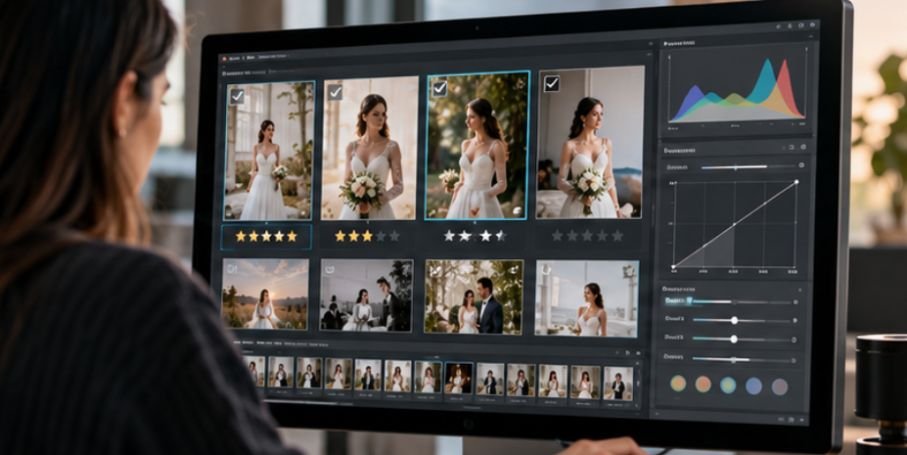
Culling should remove photographs that have no meaningful reason to reach the client. Start aggressively with frames containing missed focus, closed eyes, accidental expressions, flash misfires, test exposures, or near-identical duplicates. Then make a second pass for variety.
Avoid Sending 12 Versions of the Same Moment
Clients do not necessarily benefit from seeing every technically acceptable frame. Ten nearly identical expressions can turn a simple decision into homework.
For portraits, give them meaningful variations in expression, pose, crop, background, and orientation. For weddings, preserve the narrative of a moment without including every frame from a burst.
Software such as Lightroom, Capture One, or dedicated culling applications can speed up comparison, but automation should not make the final creative decision. A technically sharp image may still have an awkward gesture, while a slightly imperfect frame may capture the best expression of the session.
When reviewing images captured in challenging lighting, distinguish between photographs that can be improved through routine adjustments and those with significant exposure or detail limitations. These low-light photography tips without flash explain how capture technique can help preserve usable detail and improve the quality of images that move forward to editing.
Good culling reduces decision fatigue without making the client feel that important options were withheld.
Step 3: Give Proofs a Representative Base Edit
Unprocessed RAW images are generally poor proofs because RAW rendering is only an intermediate stage in production. A client evaluating flat contrast, unfinished white balance, or inconsistent exposures may judge the photography rather than understanding that the images are unfinished.
Apply enough correction to communicate the final direction:
- exposure and white balance
- basic contrast and tonal adjustments
- lens corrections
- consistent crop orientation where appropriate
- your normal color profile or base preset
Addressing exposure inconsistencies at the capture stage can streamline downstream proofing and minimize corrective edits.
Mastering taking sharp photos in natural light helps photographers maintain consistent exposure, preserve fine details, and minimize corrective adjustments during proofing.
For low-light conditions, night photography for DSLR beginners offers practical techniques for managing exposure, controlling noise, and producing cleaner images with less post-processing.
What I would avoid at this stage is time-consuming skin work, detailed hair cleanup, complicated object removal, frequency separation, or elaborate compositing unless the client needs a finished sample before choosing.
Step 4: Export Proof Files for Reviewing, Not Printing
Proofs and final files serve different purposes.
For online proofing, moderately sized JPEGs are usually sufficient. They load faster, reduce storage demands, and discourage clients from treating unfinished images as printable finals.
JPEG is widely compatible partly because its standardized compression can be read by a broad range of software. The Library of Congress documentation on JPEG with EXIF metadata describes its widespread compatibility in imaging applications.
For preservation and high-quality masters, priorities are different. The Library of Congress recommends characteristics such as high resolution, high bit depth, embedded color information, and minimally compressed or lossless files for digital photograph masters.
That distinction is useful:
Proof file: lightweight, review-friendly JPEG.
Final client file: appropriately sized, carefully exported JPEG or other agreed format.
Archive/master: RAW, TIFF, PSD, or another high-quality working format appropriate to your workflow.
Step 5: Put Client Decisions Inside a Proofing Gallery

Email chains are one of the fastest ways to create selection mistakes.
A client writes, “I like the third one from the second email, but use the crop from IMG_1887,” and suddenly nobody is completely sure which photograph has been approved.
Instead, use a private proofing gallery such as Pixieset, Pic-Time, picdrop, PhotoShelter, or another platform that supports image-specific selections.
The ideal setup allows clients to:
favorite individual photographs, add comments, create a selection list, and clearly indicate that the list is complete.
If the package includes 15 finished images, state that limit inside the gallery instructions rather than explaining it only in a contract the client signed weeks earlier.
Make Feedback Specific
Encourage notes attached to individual images.
“Please remove the exit sign behind me” is actionable when it is connected to photograph 032. A general email saying “Can you clean up the backgrounds?” leaves room for interpretation.
Your photo editing workflow for client proofing becomes dramatically easier when every approval can be traced to one filename.
Step 6: Lock the Selection Before Deep Retouching
Before opening Photoshop, confirm that the selection is final.
I recommend one checkpoint:
“These 15 images are your approved selections for final retouching.”
That single confirmation can prevent expensive rework if the client changes favorites later.
Use filenames or gallery IDs to locate the selected frames in Lightroom Classic, Capture One, or your cataloging system. Then apply detailed work only where it delivers visible value.
That may include blemish cleanup, distracting-object removal, skin refinement, flyaway hair control, localized dodging and burning, precise cropping, or more complex composite work.
Step 7: Perform a Separate Final Quality-Control Pass
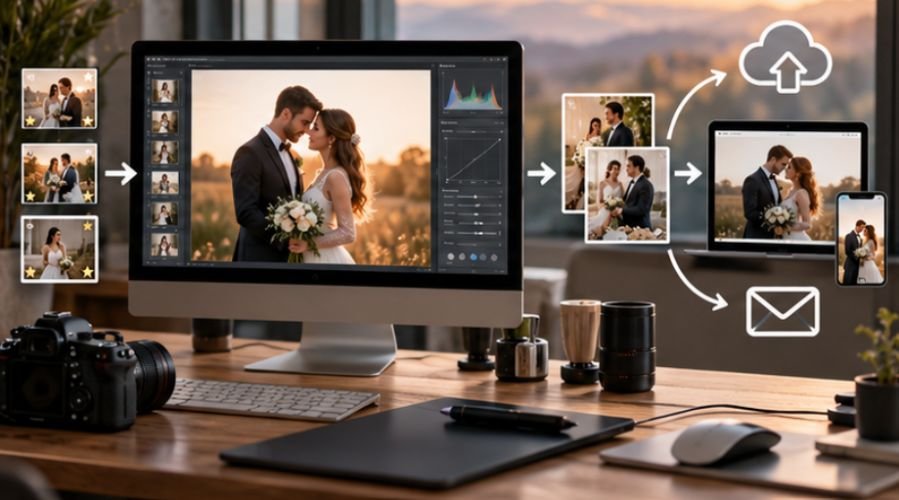
Do not deliver immediately after finishing the last retouch. Review the completed set together at consistent zoom levels. Look specifically for:
missed dust spots, inconsistent skin color, accidental cloning patterns, crooked horizons, halos around masks, mismatched crops, duplicate exports, and incorrect filenames.
I also check that metadata and ownership information are handled intentionally. The International Press Telecommunications Council explains that photo metadata can carry descriptive, administrative, licensing, and copyright information and helps photographers manage and retrieve digital assets.
Copyright should not be confused with possession of a downloaded file. The U.S. Copyright Office’s guidance for photographers explains that original photographs receive copyright protection when they are created and fixed, and copyright ownership includes rights such as reproducing and distributing the work. Your client agreement should separately define whatever usage or reproduction rights you grant.
Frequently Asked Questions
1. Should client proofs be fully edited?
Usually not. Apply consistent exposure, color, and basic corrections so clients see your intended style, then reserve detailed retouching for the photographs they approve.
2. Should photographers send RAW files for proofing?
Generally, JPEG proofs are easier for clients to view and manage. RAW files are better retained as master capture files unless your contract specifically requires otherwise.
3. How many proof images should I send?
There is no universal number. Send enough strong, meaningfully different photographs to provide choice without overwhelming the client with duplicates or technically weak frames.
4. Should proof images have watermarks?
They can, particularly if you need to distinguish unfinished proofs from final deliverables. Keep the watermark subtle enough that clients can still judge expression, composition, and detail.
Final Thoughts
The expensive part of professional editing is not moving sliders; it is spending time on the wrong photographs. A disciplined photo editing workflow for client proofing puts the client’s decision before the most labor-intensive retouching, while protecting your files and maintaining a polished presentation.
Back up first. Cull deliberately. Give proofs enough editing to represent your style. Collect selections through one controlled gallery. Lock approval. Then spend your highest-value editing time on photographs the client actually wants.
A good proofing system should make fewer decisions disappear into email—and leave more of your working day for photography.