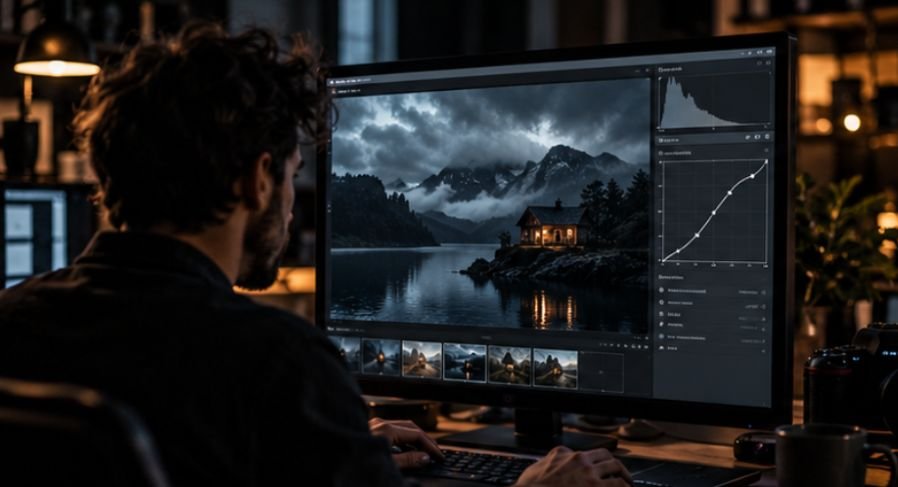

I still remember looking at one of my early portrait edits and thinking it looked amazing. The skin was smooth, the colors were vibrant, and everything seemed polished. Then I compared it with the original image. The person no longer looked like themselves. Their skin had shifted into an unnatural shade, and the portrait felt more artificial than authentic.
That experience changed the way I approached portrait retouching. Realistic editing is rarely about adding more effects. It is about preserving what already makes a person look real. Natural skin tone editing requires restraint, attention to color, and a willingness to make small adjustments that work together rather than relying on dramatic corrections.
Start With A Correct Color Foundation

Before adjusting skin tones, establish a clean color baseline. Many skin tone issues actually begin with incorrect white balance rather than poor retouching.
Mixed lighting, indoor bulbs, window light, and environmental reflections can introduce unwanted color casts. If the image starts with a blue, green, or magenta tint, every skin adjustment afterward becomes more difficult.
Use the white balance eyedropper on a neutral gray or white area whenever possible. This creates a reliable starting point before moving into local corrections.
Understanding skin color also helps. Human skin is largely influenced by a combination of:
- Red tones
- Orange tones
- Yellow tones
When one of these colors becomes dominant, skin quickly starts looking unrealistic.
For Lightroom users, the Camera Calibration panel can provide additional control. A slight shift of the Blue Primary slider often introduces warmth without creating muddy or oversaturated skin.
Use HSL Adjustments With Precision
One of the biggest mistakes in natural skin tone editing is applying global saturation changes to the entire image.
Skin responds much better to targeted HSL adjustments because they allow you to control specific color ranges independently.
Refine Hue Without Changing Identity
Hue adjustments can help correct subtle color problems.
If skin appears overly red, moving the Orange slider slightly toward yellow can create a healthier appearance. If skin looks pale or slightly green, shifting orange tones toward red may restore warmth.
The goal is not to change someone’s complexion. The goal is to bring the skin closer to how it appeared in real life.
Reduce Saturation Carefully
Oversaturated skin is one of the fastest ways to make a portrait look heavily edited.
Instead of increasing vibrancy, many experienced retouchers actually reduce orange and red saturation slightly. This removes blotchiness and creates a cleaner, more balanced appearance.
Small adjustments often produce the most believable results.
Lift Luminance For Natural Brightness
Increasing orange luminance can brighten skin without destroying highlight detail.
Unlike exposure adjustments, luminance changes work within specific color channels. The result is a subtle glow that feels natural rather than artificially brightened.
Preserve Skin Texture Instead Of Removing It

Real skin has texture.
Pores, fine lines, and subtle variations give a face dimension and character. When those details disappear completely, the portrait begins to resemble plastic rather than a human being.
Create Dedicated Skin Masks
Modern masking tools allow precise control over skin areas.
Create a skin mask and subtract:
- Eyes
- Eyelashes
- Eyebrows
- Lips
- Hair
This allows targeted skin adjustments while preserving important facial details.
Use Texture And Clarity Conservatively
Reducing clarity or texture can soften harsh micro-contrast, but aggressive settings often produce unrealistic results.
A moderate reduction typically works better than extreme smoothing.
When editing portraits, I often remind myself that viewers notice over-retouching much faster than they notice small imperfections.
Control Sharpening Properly
Many editors sharpen the entire image equally. This can exaggerate pores and create rough-looking skin.
Instead, use sharpening masks so that sharpening primarily affects:
- Eyes
- Eyelashes
- Hair
- Clothing details
Keeping sharpening away from flatter skin areas maintains a more natural appearance.
Add Subtle Grain For Realism
One underrated technique is introducing a small amount of fine digital grain during final processing.
Very subtle grain helps break up smooth gradients and reduces the artificial appearance that sometimes comes from excessive digital cleanup. It can also create a more organic texture throughout the portrait.
Improve Color Consistency Across The Face
A common issue in portrait photo editing is uneven skin color.
Cheeks may appear red while the forehead appears yellow. Shadows can introduce green or magenta shifts. These inconsistencies become more visible after basic retouching.
This is where a structured photoshop editing workflow becomes extremely valuable. Rather than applying broad corrections, targeted adjustments allow individual problem areas to be balanced without affecting the entire face.
Consistency is often what separates amateur retouching from professional-looking portrait work.
Use Frequency Separation Carefully

Frequency separation remains one of the most powerful techniques for skin tone correction when used responsibly.
The process separates an image into two components:
- High Frequency: texture details such as pores and fine lines
- Low Frequency: color information and tonal transitions
This separation allows color inconsistencies to be corrected independently from texture.
For example, patchy redness can be blended on the low-frequency layer while preserving natural skin texture on the high-frequency layer.
The technique becomes problematic only when overused. Excessive smoothing removes character and creates the artificial “beauty filter” effect many viewers immediately recognize.
Fix Localized Color Problems
Even well-lit portraits can contain isolated color issues.
Areas around the nose may appear red. Jawlines can pick up green reflections from grass. Under-eye regions may show blue or purple tones.
Instead of applying global corrections, use targeted Hue/Saturation adjustments.
Sample the problematic area directly and narrow the color range. This allows you to blend those sections back into the surrounding skin tones naturally.
These small corrections often make a larger difference than major edits elsewhere in the image.
FAQs: Natural Skin Tone Editing Techniques for More Realistic Portraits
1. How do I make skin tones look natural in Lightroom?
Start with accurate white balance, then use HSL adjustments to refine orange and red tones. Small changes to hue, saturation, and luminance usually produce the most natural results.
2. Why does skin look orange after editing?
Excessive saturation, aggressive warming, or incorrect white balance often causes orange skin. Reducing orange saturation and correcting color temperature can help restore realism.
3. Is frequency separation necessary for portrait retouching?
Not always. Frequency separation is useful for correcting uneven skin color while preserving texture, but many portraits can be improved using masking and selective color adjustments alone.
4. How can I smooth skin without making it look fake?
Use local masking and moderate texture reduction rather than extreme skin smoothing. Preserve pores and natural details while softening only distracting imperfections.
Final Thoughts
Natural skin tone editing is less about technical tricks and more about restraint. The best portrait edits rarely announce themselves. They maintain realistic color, preserve texture, and respect the individuality of the subject. When white balance, HSL adjustments, masking, and targeted corrections work together, portraits feel authentic rather than processed. That authenticity is often what viewers respond to most, even if they cannot explain why.
The goal is not perfection. The goal is believable, natural-looking portraits that still feel like the person standing in front of the camera.