I approach clear slow motion by checking the recording settings before thinking about editing. Slowing a clip reveals problems that normal playback can hide, including smeared movement, drifting focus, and distracting camera shake. Raising the frame rate helps, but it cannot solve every problem.
If you want to learn how to shoot slow motion videos without blur, start with enough frames, short enough exposures, reliable focus, and sufficient light. The goal is controlled sharpness that suits your subject, whether you are filming a basketball shot, pouring coffee, or recording a dancer.
Identify What Makes Your Footage Look Blurry
Motion blur appears when a subject moves during an individual frame’s exposure. A moving hand might leave a streak while the stationary background stays sharp.
Focus errors look different. Your subject appears soft because the camera focused elsewhere or failed to follow movement. Camera shake affects the framing and can smear the whole image during exposure.
Choppy playback is another issue entirely. It usually involves insufficient captured frames for the chosen slowdown. Diagnose the problem before changing settings.
Choose Your Playback Speed Before Recording
Decide how slowly the finished action should move, then select your capture rate. Recording at 60 frames per second and playing every frame at 30 fps produces half-speed movement. Recording at 120 fps allows quarter-speed playback on that same timeline. At 240 fps, you can achieve one-eighth speed.
For the best results, choose a capture rate that matches your intended playback speed and the movement you want to preserve. This article on how to choose the right frame rate for video explains how frame-rate choices affect motion and the final viewing experience.
For a 24 fps project, 120 fps provides fivefold slow motion. The playback percentage equals the timeline frame rate divided by the capture frame rate, multiplied by 100.
Choose the lowest capture rate that delivers your intended effect. Higher settings can introduce resolution limits, tighter crops, heavier storage demands, or reduced camera features.
Set Shutter Speed for the Sharpness You Need
Shutter speed controls how long each frame gathers light. Shorter exposures reduce the distance a moving subject travels during that frame.
Start With Natural-Looking Movement
The 180-degree shutter guideline provides a useful starting point. At 60 fps, try approximately 1/120 second, or 1/125 if necessary. At 120 fps, begin around 1/240 or 1/250. At 240 fps, approximately 1/480 or 1/500 is comparable.
These settings retain some natural motion blur. They do not freeze every moving detail.
Use Shorter Exposures for Fast Details
For splashing water or rapidly moving equipment, test a faster shutter. At 120 fps, compare 1/250 with 1/500, then inspect individual frames.
Faster settings require more light and can make movement appear more abrupt. Judge both paused sharpness and continuous playback before deciding.
Add Light Before Pushing Other Settings

Short exposures leave less time to gather light. If the scene becomes too dark, add illumination, move closer to a suitable light, or relocate outdoors.
Opening the aperture helps, but reduces depth of field and makes focus more demanding. Increasing ISO can brighten the image, although excessive noise and aggressive noise reduction may obscure fine texture.
Understanding how to shoot slow motion videos without blur means balancing exposure and detail together. Avoid lengthening the exposure automatically when sharp movement matters. If necessary, reduce the capture rate and accept a smaller slowdown.
Keep Focus on the Moving Subject
Use continuous autofocus with subject tracking when your camera supports it reliably in the selected recording mode. Test the actual movement, especially when subjects approach the lens.
For repeatable action, manual prefocusing can work well. Place an object where the movement will happen, focus carefully, then keep the action within that zone.
Avoid using the widest aperture automatically. A slightly smaller aperture gives moving subjects more room to remain sharp.
On phones, clean the lens and check focus before recording. Lock focus only when the subject will remain near the same distance.
Control Camera Movement and Lighting Flicker
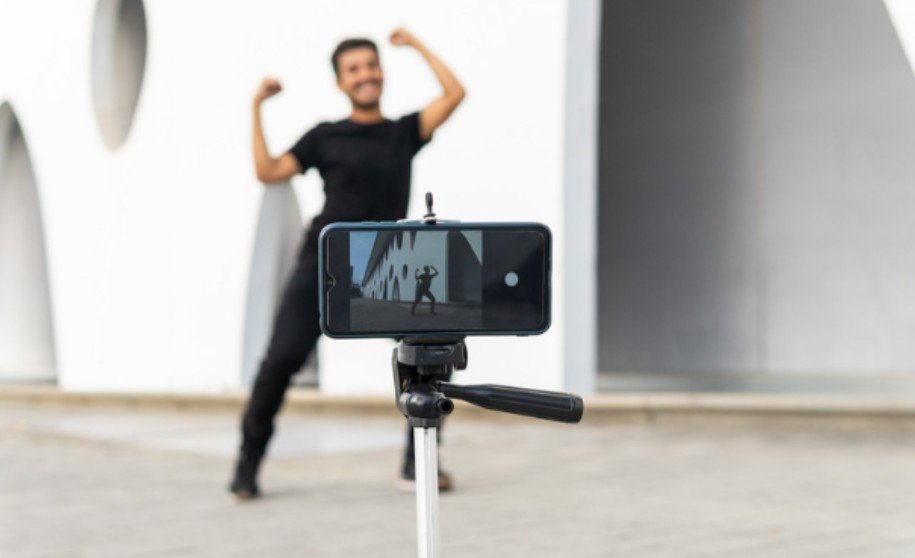
A tripod provides predictable framing for product shots, demonstrations, and repeated action. For moving shots, use deliberate movements and suitable stabilization.
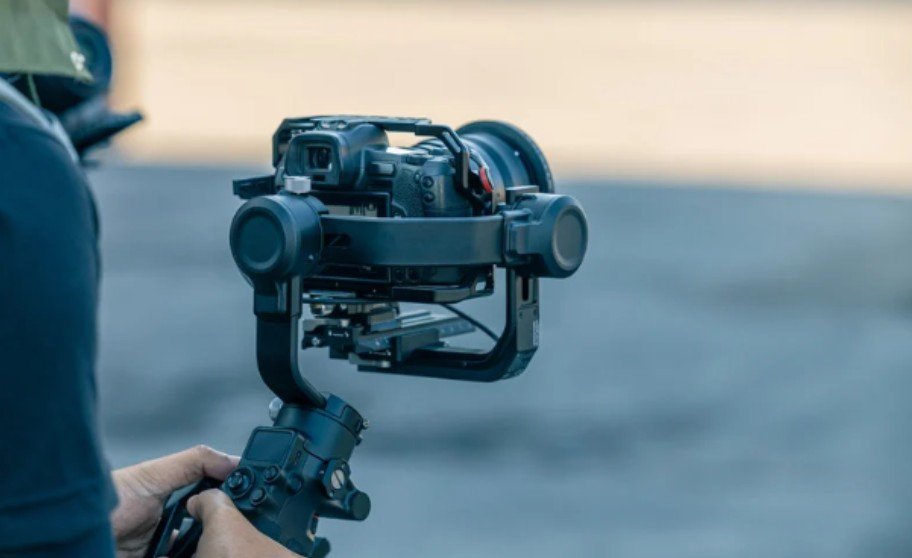
Stabilization reduces camera movement; it cannot freeze a moving subject during a long exposure. Avoid assuming that a gimbal replaces correct shutter settings.
Artificial lights can create pulsing brightness or horizontal bands at high capture rates. Test the intended lights at the exact frame rate, shutter speed, and brightness level you plan to use. Some LED fixtures flicker when dimmed. For more troubleshooting techniques, see how to avoid flickering lights when recording video to identify lighting issues and find suitable camera settings for cleaner footage.
Daylight can simplify testing. Indoors, use lighting verified for high-speed recording rather than relying on a general “flicker-free” claim. When filming outdoors, clear sound is equally important, so explore these tips on how to record clear audio for videos outdoors to capture dialogue with less distracting background noise.
Edit Without Introducing New Problems
Conform or slow the recording according to its capture rate and your timeline. For example, 120 fps footage on a 30 fps timeline supports 25% playback using captured frames.
Check whether a dedicated slow-motion mode already saved the clip at reduced speed. Slowing it again may exceed the available frames.
Frame blending can create ghosted edges. Optical flow generates intermediate frames but may distort crossing limbs, splashes, and complex backgrounds.
Preview a short export before finishing. Plan separate music or sound effects when slowed original audio distracts from the scene.
Frequently Asked Questions
1. What is the easiest way to learn how to shoot slow motion videos without blur?
Record a repeatable movement in bright light at 120 fps. Compare shutter settings around 1/250 and 1/500, checking focus and playback.
2. Does higher fps automatically make footage sharper?
No. More frames support slower playback, while exposure time, focus, lighting, and recording quality affect sharpness.
3. Can editing completely remove recorded blur?
Usually not. Sharpening may improve perceived edges, but cannot reliably recover detail smeared during exposure.
Make Your Next Take Count
I would finish every setup with a short recording of the actual action. I check paused frames for sharpness, watch slowed playback for smoothness, and inspect lighting before continuing. That simple habit catches problems while there is still time to correct them.