I start planning a video by thinking about movement: someone talking, a cyclist passing, or water splashing into a glass. Each scene asks something different from the camera. Selecting the highest available setting rarely solves every problem.
Understanding how to choose the right frame rate for video means connecting your subject, intended playback speed, lighting, and delivery requirements. Once those pieces fit, choosing between 24, 30, and 60 frames per second becomes much easier.
Start With the Finished Video
Frame rate measures how many individual images a video captures or displays each second. More frames can produce smoother motion, but they do not automatically improve resolution, color, or storytelling. When you plan a video shoot with a simple shot list, choose frame rates that support the movement and purpose of each scene.
Before recording, check whether your client or delivery platform specifies a setting. A required delivery format should guide your project.
For projects without fixed requirements, choose the motion style first. Then establish your editing timeline and decide which shots need higher capture rates for slow motion.
Choose Between 24, 30, and 60 FPS
24 FPS for a Traditional Film Look
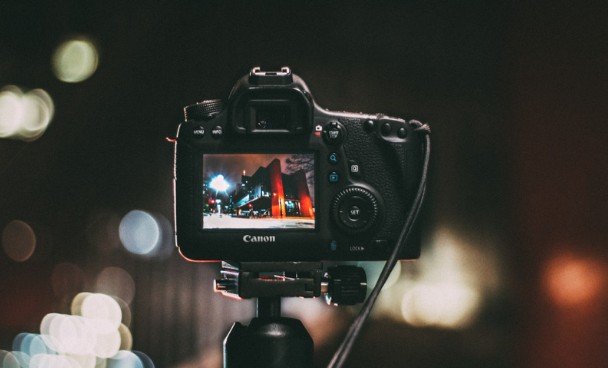
Choose 24 fps when you want the familiar motion associated with movies. It suits narrative scenes, thoughtful interviews, and storytelling focused on atmosphere.
However, 24 fps does not create cinematic footage by itself. Lighting, composition, camera movement, and shutter speed still matter. Fast pans can look noticeably juddery, so move the camera deliberately.
30 FPS for Everyday Video
Thirty fps offers slightly smoother motion than 24 fps while keeping production manageable. It works well for tutorials, presentations, cooking demonstrations, and talking-head content.
Treat it as a practical option rather than a platform requirement. YouTube supports multiple frame rates, so there is no need to convert every upload to 30 fps.
60 FPS for Smoother Action
Sixty fps captures movement more frequently, making it useful for sports, exercise demonstrations, gameplay, and energetic activities.
To preserve that smoother appearance, deliver the finished video at 60 fps. Recording at 60 and exporting at 30 does not retain the same temporal detail because frames must be removed or otherwise processed.
Plan Slow Motion Before Recording
Higher capture rates provide extra frames that you can spread across a longer playback period. Footage recorded at 60 fps and played at 30 fps produces half-speed motion. On a 24 fps timeline, the same footage can play at 40 percent speed.
Recording at 120 fps allows quarter-speed playback on a 30 fps timeline. Check your camera first: high-speed modes may change resolution, crop the image, or disable audio. Keep dialogue and other synchronized sound at normal playback speed unless you intentionally want altered audio.
Match Shutter Speed to Your Motion Style
Frame rate controls how frequently frames are captured. Shutter speed controls how long each frame gathers light. For familiar motion blur, start near the 180-degree shutter guideline: approximately 1/48 second at 24 fps, 1/60 at 30 fps, and 1/120 at 60 fps. If 1/48 is unavailable, 1/50 is a common starting point.
These settings are guidelines. Faster shutter speeds create crisper, more abrupt movement; slower settings add blur. In bright conditions, a neutral-density filter can help maintain your chosen shutter speed without overexposing the image.
Check Lighting Before Raising FPS
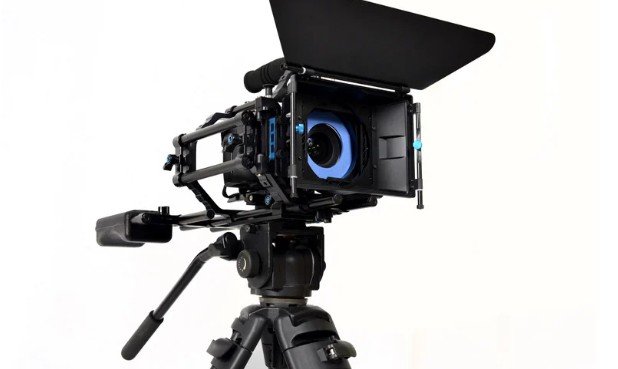
When you increase frame rate and shorten shutter time accordingly, each frame receives less light. You may need a wider aperture, higher ISO, or additional illumination.
That makes high FPS less forgiving in dim rooms. A cleaner 30 fps recording may serve your project better than noisy 120 fps footage.
Artificial lights can also flicker or produce bands. Record a short test under the actual fixtures and inspect playback. Adjust shutter timing or use your camera’s flicker-reduction controls when available.
Keep Recording, Editing, and Export Settings Aligned
Choose one timeline frame rate for the finished project. Record normal-speed footage at that rate when practical, and use higher rates intentionally for slow-motion shots.
Avoid casually mixing 24 and 30 fps footage. Converting between them can introduce uneven motion because their frames do not divide evenly.
Also check exact settings. Labels such as 24, 30, and 60 may represent 23.976, 29.97, and 59.94. Match cameras and delivery specifications carefully.
Export at your intended timeline rate, then watch the finished file before uploading.
Frequently Asked Questions
1. How can beginners learn how to choose the right frame rate for video?
Start with the delivery requirements, then consider subject movement and slow-motion needs. Record the same short scene at different settings and compare playback on your intended viewing device.
2. Does higher FPS always create larger files?
No. File size depends heavily on bitrate, duration, and compression. Higher frame rates often need more bitrate to preserve comparable quality, but FPS alone does not determine storage requirements.
3. Can I create slow motion from 24 FPS footage?
You can slow it down, but smooth results are limited without additional captured frames. Interpolation can generate intermediate images, although complicated movement may reveal visible artifacts.
Final Thoughts
I choose frame rate by deciding how the finished video should move, then checking whether my camera and lighting can support that choice.
Before an important shoot, I record a brief test, confirm the timeline settings, and review an exported sample. That small habit helps me catch motion problems while I can still correct them.