I pay attention to movement before deciding whether a video looks polished. A walking subject can appear harsh and jumpy even when exposure and focus look correct. Excessive blur creates the opposite problem, turning simple gestures into distracting smears.
Understanding how to set shutter speed for natural motion in video starts with choosing a frame rate, then selecting an exposure time that gives moving subjects an appropriate amount of blur. Here is a practical approach you can use with a mirrorless camera, DSLR, or phone offering manual video controls.
Start With the 180-Degree Shutter Rule
Shutter speed determines how long the sensor collects light for each video frame. Frame rate determines how many frames the camera records each second. They influence different aspects of movement.
The 180-degree shutter rule recommends exposing each frame for approximately half its duration. Calculate your starting exposure time as one divided by twice your recording frame rate.
At 24 frames per second, that means 1/48 second. If your camera lacks that setting, select 1/50. At 30 fps, begin with 1/60. At 60 fps, start with 1/120, or the nearby 1/125 setting if necessary.
These settings produce a familiar balance between visible detail and motion blur. Treat them as starting points rather than guarantees that every movement will look smooth.
Choose Your Frame Rate Before Your Shutter
Decide how you intend to show the footage before adjusting exposure.
Choosing the right frame rate helps establish the look of your footage and determines the shutter speed needed for natural-looking motion. If you are unsure which recording rate suits your project, explore how to choose the right frame rate for video before adjusting your exposure settings.
For storytelling, interviews, and everyday creative projects, 24 or 30 fps are common choices. Recording at 60 fps provides more frequent motion samples and can also support slow motion when played back at a lower frame rate.
Match Shutter to the Recording Rate
If you record at 60 fps for playback at 30 fps, begin around 1/120 second during capture. Do not choose 1/60 simply because your editing timeline uses 30 fps.
For 120 fps recording, approximately 1/240 second provides the same 180-degree relationship. Your camera may offer 1/250 instead.
Higher recording rates with these shorter exposures require more light, so plan lighting before switching to slow motion.
Set and Lock Your Shutter Speed
Switch to video mode and choose manual exposure, or another mode that lets you hold shutter speed constant. Select your recording frame rate, then enter the corresponding shutter setting.
On compatible cameras, selecting a 180-degree shutter angle can maintain this relationship automatically when you change frame rates.
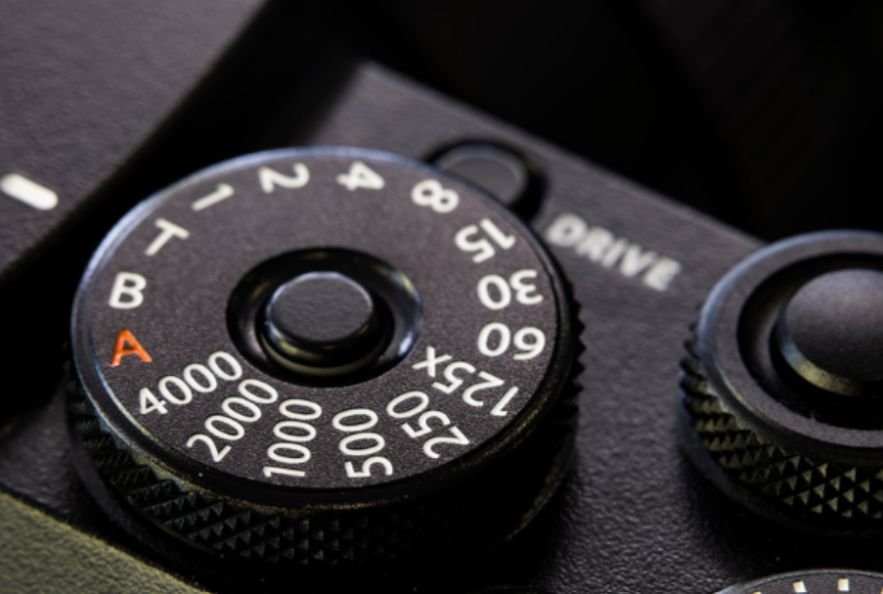
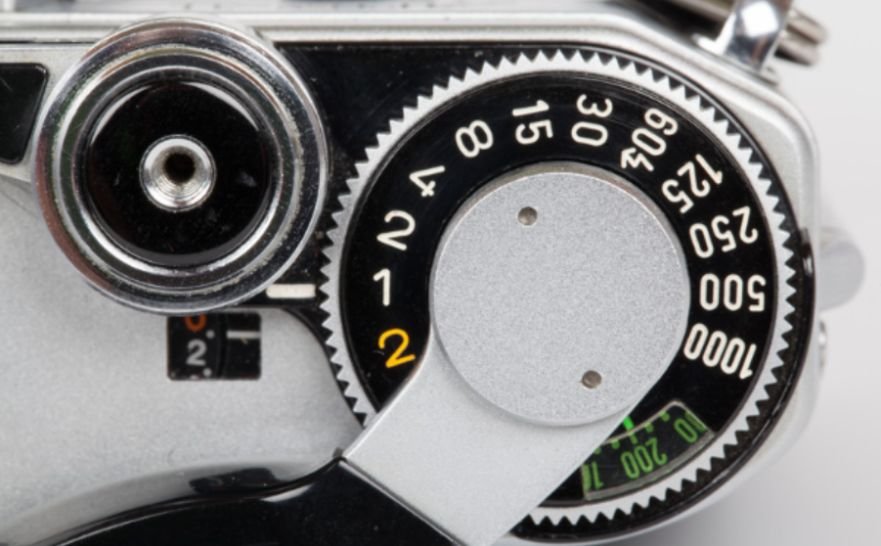
Check the display carefully. A shutter value shown as “60” commonly means 1/60 second, rather than sixty seconds.
When practicing how to set shutter speed for natural motion in video, keep the shutter consistent while testing exposure adjustments. Otherwise, automatic changes can alter movement halfway through a shot.
Balance Brightness Without Changing Motion
Once your shutter is selected, adjust aperture, ISO, lighting, or neutral-density filtration to reach the exposure you need.
Use an ND Filter in Bright Conditions
Outdoors, 1/50 or 1/60 second may admit too much light, especially with a wide aperture. An ND filter reduces incoming light while allowing you to preserve your chosen shutter and depth of field.
Add Light Before Slowing the Shutter
Indoors, open the aperture if the resulting depth of field suits your subject. Add light where possible, then raise ISO within an acceptable noise range.
Slowing from 1/60 to 1/30 brightens the image but also increases motion blur. Make that trade deliberately rather than using it as an automatic fix.
Troubleshoot Motion and Lighting Problems
Shutter speed cannot solve every movement problem. Identify the symptom before changing settings.
Planning camera movements and individual shots before recording can help videographers identify scenes that need specific motion effects or exposure settings. To organize your footage more effectively, explore how to plan a better video shoot with a simple shot list before filming.
Harsh or Staccato Movement
A very fast exposure, such as 1/1000 at 24 fps, captures sharply defined positions with little blur between them. Return toward 1/50 for a more conventional motion appearance.
Smearing Around Hands or Faces
Check whether your exposure time is too long for the action. Move toward your starting shutter setting and compensate for the lost brightness elsewhere.
Judder During Panning
Even a suitable shutter cannot eliminate the limitations of a low frame rate. Slow your pan, reconsider framing, or choose a higher recording and delivery rate when appropriate.
Flickering Lights or Moving Bands
Artificial lighting may pulse in ways that conflict with your exposure timing. Test under the actual fixtures. Depending on local electrical frequency, settings such as 1/50, 1/60, 1/100, or 1/120 may help.
Dimmable LEDs can behave differently, so no single setting guarantees success. Use fine shutter adjustment when available.
Frequently Asked Questions
1. What is the easiest way to learn how to set shutter speed for natural motion in video?
Record the same movement at three shutter settings while keeping brightness comparable. Compare playback to see how exposure time changes blur.
2. Should I always follow the 180-degree rule?
No. Faster shutters can emphasize action; slower shutters can create deliberate smearing.
3. Can editing repair incorrect motion blur?
Added blur may help some footage, but excessive recorded blur is difficult to reverse.
Final Thoughts
I start with frame rate, choose the corresponding shutter, and balance exposure around it.
Maintaining consistent motion and exposure helps create polished footage for social platforms, where distracting blur or choppy movement can affect the viewing experience. For a broader look at creating videos for these channels, see how social media video production works.
Then I record a short movement test. That simple habit helps me catch distracting blur, lighting problems, and awkward pans before filming the full scene.