
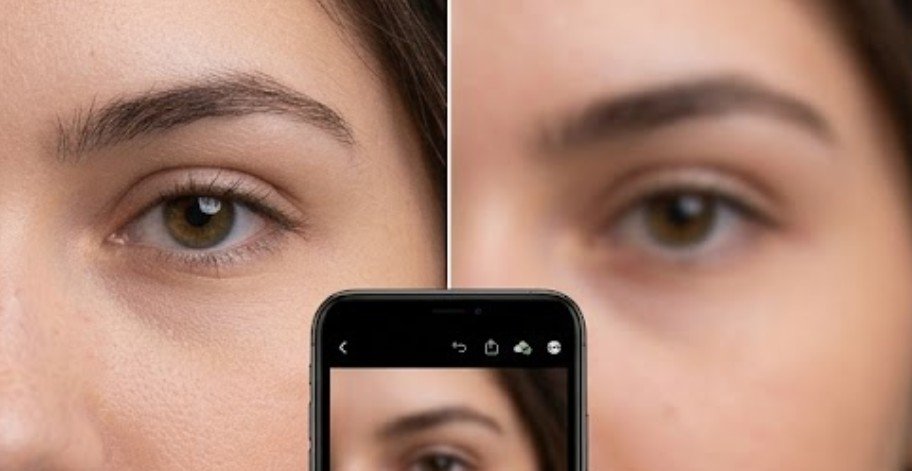
Lightroom Mobile cannot reconstruct light rays that never hit your camera sensor, yet standard mobile displays disguise slight focus errors as unsalvageable losses. Most phone screens render unedited RAW and JPEG files with generalized smoothing, making minor focus drift look like catastrophic blur. Adjusting micro-contrast and isolated edge sharpness can instantly restore lost focal clarity across your mobile photos.
Recovering image clarity on a smartphone requires precise manipulation of digital edge gradients. When a lens misses focus slightly or introduces subtle motion blur, contrast between adjacent pixels degrades. Lightroom Mobile provides professional-grade tools to sharpen structural boundaries without destroying image quality.
The Physics of Digital Blur and Image Sharpness
Camera sensors record light through a grid of pixels. When focus shifts or camera shake occurs, high-contrast borders smear across multiple neighboring pixels rather than landing crisply on one.
Optical research supported by the National Institute of Standards and Technology (NIST) emphasizes that digital image sharpness depends heavily on spatial frequency and contrast boundary preservation. Rather than creating new photographic detail, editing tools sharpen these smeared pixels by increasing local edge contrast.
Understanding how your phone processor handles image rendering helps prevent over-editing. You can learn more about baseline digital processing in our beginner photo editing guide.
[Sharp Edge] Pixels: 0 | 0 | 255 | 255 (Steep Contrast Transition)
[Blurry Edge] Pixels: 0 | 85 | 170 | 255 (Smeared Gradual Transition)
[Sharpened] Pixels: 0 | 40 | 215 | 255 (Restored High Contrast)
Step-by-Step Restoration Guide in Lightroom Mobile
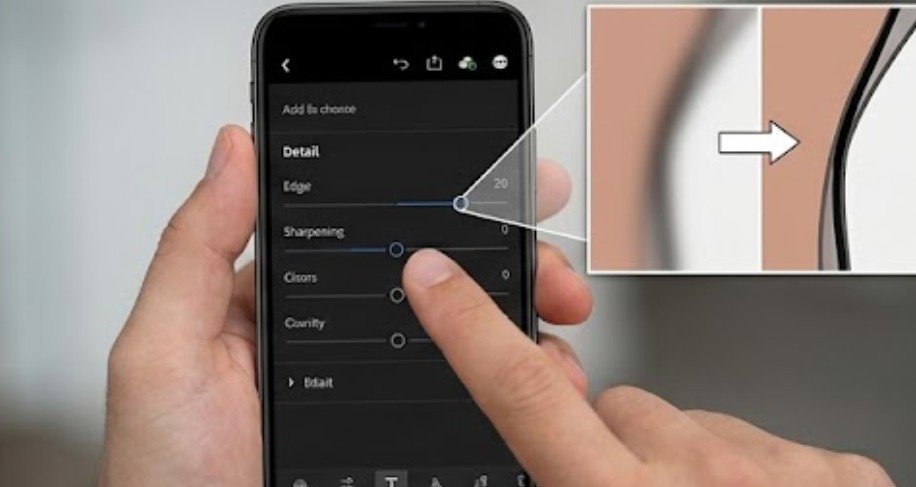
Follow this exact sequence to sharpen soft photos while maintaining natural textures.
1.Open Image & Access the Detail Panel:Set up your workspace for precision viewing.
Open Lightroom Mobile, select your target image, and tap Edit in the bottom navigation toolbar. Scroll along the bottom tools to locate the Detail panel (represented by a triangle icon). Pinch to zoom in to 100% (1:1 view) on the main point of interest, such as an eye or text.
2.Apply Baseline Edge Sharpening:Increase contrast on blurry pixel boundaries.
Locate the Sharpening slider. Gradually push the value upward, typically staying between 30 and 50. Watch how subject outlines snap into focus. Stop as soon as main edges appear distinct to avoid high-frequency digital artifacts.
3.Execute the Dual-Touch Masking Method:Isolate sharp subject edges from smooth surfaces.
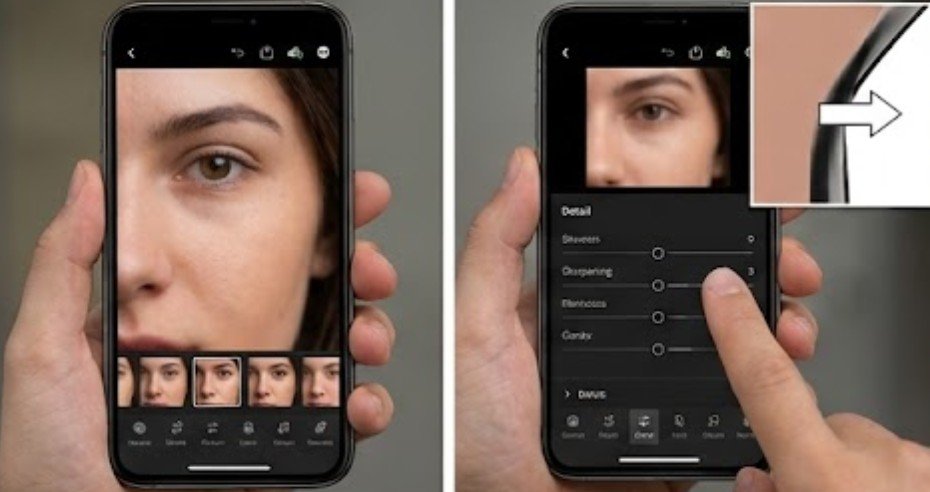
Press and hold the screen with one finger while dragging the Masking slider with your other hand. The display transforms into a black-and-white mask. White regions receive sharpening, while black regions are protected. Adjust the slider (typically 50 to 75) until only structural outlines show as white, shielding smooth areas like skies or skin from unwanted grain.
4.Fine-Tune Radius and Detail Controls:Target specific pixel widths for maximum clarity.
Adjust the Radius slider to control how far sharpening extends from each edge boundary. Keep Radius low (around 0.8 to 1.2) for fine details like hair or distant foliage. Next, move the Detail slider; keep it lower (20 to 35) for portraits to prevent skin roughness, or raise it for architectural shots.
5.Enhance Midtone Punch in the Effects Panel:Add structural weight without boosting overall noise.
Navigate to the Effects panel next to the Detail menu. Slightly increase Texture (+10 to +20) to bring out fine surface detail. Increase Clarity (+5 to +15) to elevate midtone contrast along broad edges, giving soft images added depth and presence.
6.Clean Up Residual Artifacts:Smooth out unwanted grain from sharpening.
Return to the Detail panel if high ISO noise or editing artifacts appear. Drag the Noise Reduction slider up slightly (15 to 30) to smooth out background grain without softening your freshly sharpened edges.
Strategic Parameter Settings by Subject Type
Different image subjects require tailored sharpening profiles. Applying aggressive settings to soft portrait skin creates harsh, unnatural grain, whereas complex landscapes demand precise edge preservation.
| Subject Category | Sharpening Range | Masking Threshold | Radius Setting | Texture / Clarity |
| Portraits & People | 30 – 45 | 65 – 85 (High) | 0.8 – 1.0 | +5 / +10 |
| Landscapes & Nature | 45 – 60 | 30 – 45 (Moderate) | 1.0 – 1.3 | +15 / +15 |
| Architecture & Urban | 50 – 70 | 20 – 35 (Low) | 1.2 – 1.5 | +20 / +20 |
| Text & Documents | 60 – 80 | 10 – 25 (Minimal) | 1.4 – 1.8 | +25 / +25 |
These parameters balance crispness with natural color integrity. Discover more professional workflow insights in our guide on how creators edit photos for social media.
For additional ways to improve clarity and achieve better results during post-processing, explore these techniques that improve image quality.
Pre-Flight Quality Assurance Checklist
Run through these critical evaluation steps before exporting your edited file to guarantee professional results.
Realistic Technical Limitations
Lightroom Mobile excels at correcting slight focal drift, subtle shutter lag, and lens softness. However, understanding physical optical limits prevents wasted effort on unsalvageable files.
- Severe Motion Blur: When camera movement drags light across dozens of pixels, digital sharpening cannot reconstruct lost detail.
- Extreme Out-of-Focus Optics: If a subject falls completely outside the lens depth of field, information was never recorded by the camera sensor.
- Heavy Compression Artifacts: Low-resolution JPEGs saved from messaging apps lack the raw pixel density required for clean edge recovery.
For advanced imaging standards and digital preservation guidelines, explore resources provided by the Library of Congress Digital Preservation Program.
Camera sensor technology updates from educational research hubs like the MIT Media Lab Camera Culture Group and imaging insights from the Society for Imaging Science and Technology (IS&T) offer deeper technical context on these optical limitations.
Frequently Asked Questions
1. Can Lightroom Mobile fix severely out-of-focus photos?
No. Lightroom sharpens soft edges, but it cannot synthesize missing optical data when focus completely misses the subject.
2. What is the dual-finger screen masking trick in Lightroom Mobile?
Holding one finger on the display while sliding the Masking bar shows a black-and-white preview: white zones are sharpened, while black zones remain smooth and untouched.
3. Why does my image look grainy after sharpening?
Grain occurs when sharpening is applied indiscriminately to flat areas. Raise your Masking slider and apply mild Noise Reduction to clean up unwanted background grain.
4. Should I increase Clarity or Sharpening first?
Increase Sharpening first to define micro-edges. Follow up with conservative adjustments to Texture and Clarity in the Effects panel to boost overall midtone contrast.
Conclusion
Recovering soft photos on a mobile device relies on targeted edge enhancement rather than aggressive global edits. By pairing localized sharpening with precise dual-touch masking, you can transform soft smartphone captures into crisp, professional images. Master these micro-contrast controls today, and keep your mobile visual archive looking sharp.