A backlit monitor lies to your eyes every single day. While an OLED display can blast up to 1,000 nits of light directly into your retina, print relies entirely on reflective ambient light, which explains why over 80% of photographers complain their first physical prints look dark, muddy, and dull.
Mastering how to prep photos for print export settings is the bridge between a stunning digital capture and a gallery-quality physical product. You don’t need expensive commercial equipment to bridge that gap. You just need to configure your file parameters so paper and ink reproduce what you intended.
Here is how to calibrate, format, and export your digital images to get flawless paper prints on your very first try.
1. Crop to Physical Aspect Ratios First
Pixel dimensions mean nothing if your aspect ratio does not match the paper size. Digital cameras natively shoot in either a 3:2 ratio (most DSLRs and mirrorless systems) or a 4:3 ratio (Micro Four Thirds and smartphones).
If you send an uncropped 3:2 image file to print an 8×10 frame (which uses a 4:5 ratio), the printing software will automatically chop off the edges of your composition.
Always select the Crop Tool in Lightroom or Photoshop and lock the ratio to your target print size—such as 4:5 for an 8×10, or 5:7 for a 5×7 print—before making any export adjustments.
2. Standardize Your Print Resolution (DPI vs. PPI)
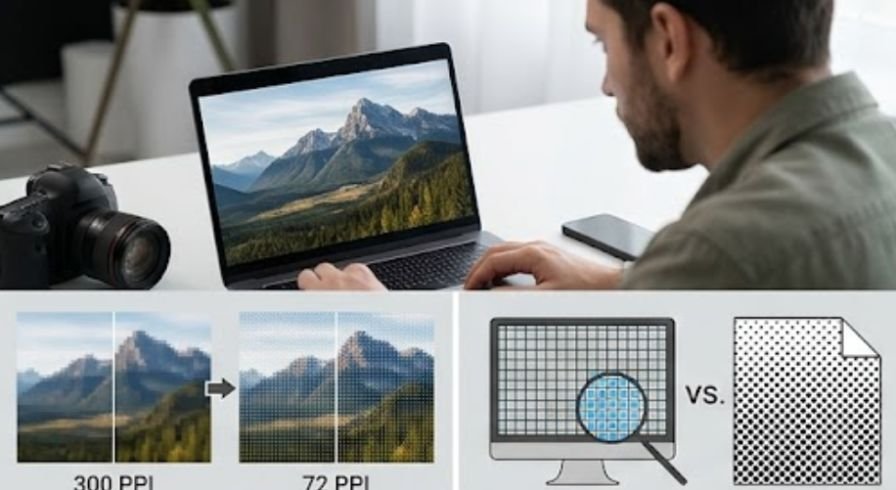
Resolution confuses many photographers because screen pixels (PPI) and printer ink dots (DPI) get used interchangeably.
- Pixels Per Inch (PPI): The digital density of pixels within your image file.
- Dots Per Inch (DPI): The physical ink droplets a photo printer sprays onto paper.
To ensure razor-sharp detail without visible pixelation, the photo industry standard for fine art and commercial printing is 300 PPI.
Minimum Resolution Requirements for Common Print Sizes
| Print Size (Inches) | Target PPI | Required Pixel Dimensions |
| 4 x 6 | 300 PPI | 1200 x 1800 pixels |
| 8 x 10 | 300 PPI | 2400 x 3000 pixels |
| 11 x 14 | 300 PPI | 3300 x 4200 pixels |
| 16 x 20 | 300 PPI | 4800 x 6000 pixels |
If your camera produces 24-megapixel files (6000 x 4000 pixels), you have more than enough resolution to print up to 16×20 inches without upsampling. If you need to print larger or fix cropped files, explore modern AI image enhancement guide methods to scale up your image data safely.
3. Choose the Right Color Space: sRGB vs. Adobe RGB
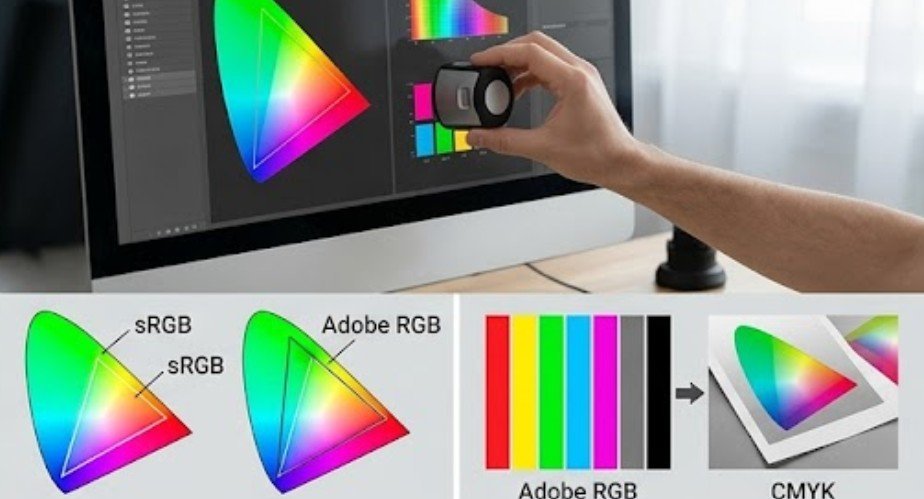
Color spaces define the range of colors (gamut) your file can record. Sending the wrong color profile to a print lab causes muted tones and muddy skin tones.
[ ProPhoto RGB ] –> Massive color space (Used for editing)
└── [ Adobe RGB (1998) ] –> Extended gamut (Used for fine art labs)
└── [ sRGB ] –> Safe universal standard (Accepted everywhere)
- sRGB: The universal standard for digital devices and consumer print labs. If you are ordering through consumer labs or online print services, always export in sRGB with the ICC profile embedded.
- Adobe RGB (1998): Contains a wider color gamut, particularly in green and cyan tones. Use this only if you operate a calibrated inkjet printer or work with a specialized lab that specifically asks for wide-gamut RGB files.
If you submit an Adobe RGB file to a lab expecting sRGB, your final print will look flat and washed out.
4. Master the File Format and Compression
For the ultimate print quality, match your file format to your production route:
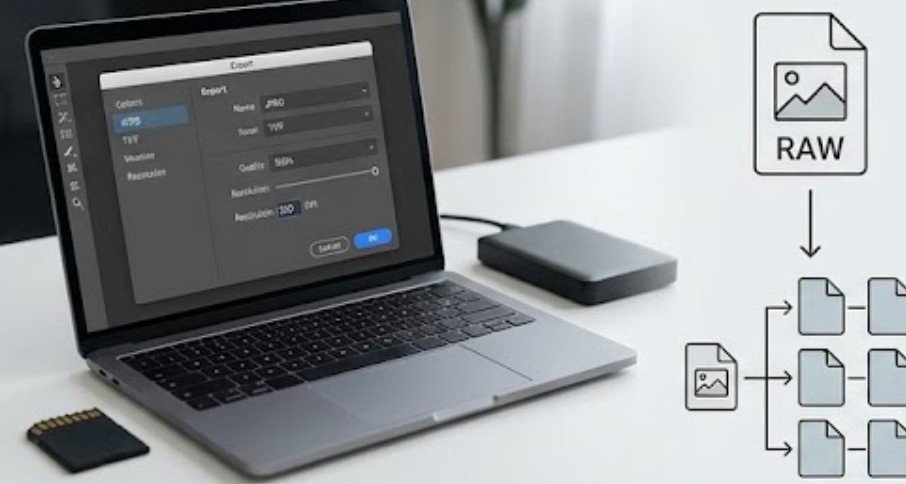
- JPEG (Quality 100% or Level 12): JPEGs use lossy compression, but at 100% quality (8-bit), file degradation is imperceptible to the human eye. It remains the gold standard format accepted by 99% of photo labs.
- TIFF (Uncompressed, 8-bit or 16-bit): TIFFs preserve lossless image data. Select uncompressed TIFF files when printing large-format fine art or gallery prints through high-end commercial printers.
Unless you are sending work to a specialized fine-art press, high-quality JPEGs deliver maximum clarity with manageable file sizes.
5. Adjust Exposure for Reflective Light
Monitors produce light; prints reflect it. That fundamental physical difference makes unadjusted photo exports print darker than they appear on screen.
Lighting plays a crucial role in both image capture and final print quality.
Photographers who want to achieve more balanced highlights, natural skin tones, and appealing warmth can benefit from these golden hour photography tips for better portraits, which explain how to work with softer natural light to create visually compelling images.
The Exposure Compensation Workflow
- Lower your computer display brightness to roughly 80 to 100 nits (cd/m2) before your final edit.
- If printing on matte paper, boost your global image exposure by +0.15 to +0.30 EV.
- Lift your shadows slightly using a Tone Curve or Shadow slider to keep shadow details from collapsing into flat black.
Checking your image histogram ensures your shadow tones don’t hit absolute zero (0,0,0 RGB value), which guarantees lost detail in print.
6. Apply Media-Specific Output Sharpening
Digital editing softens micro-details, and ink bleeding onto paper (known as dot gain) softens them further. You need targeted output sharpening to counteract this.
Lightroom simplifies this with built-in export sharpening engines based on Photodex and Bruce Fraser algorithms:
- Glossy / Luster Paper: Select Sharpen for Glossy Paper at Standard amount. Smooth coatings retain sharp detail easily.
- Matte / Cotton Rag Paper: Select Sharpen for Matte Paper at High amount. Fibrous matte paper absorbs ink and spreads it slightly, requiring stronger contrast edge sharpening.
The Master Pre-Export Print Checklist
Run through this checklist in your editing software before clicking export:
- Aspect Ratio: Cropped to exact print dimensions (e.g., 4:5 for 8×10).
- Resolution: Set to 300 PPI without unnecessary upsampling.
- Color Space: Set to sRGB (or Adobe RGB if requested by lab) with profile embedded.
- Bit Depth: 8-bit for JPEGs; 8-bit or 16-bit for TIFFs.
- Exposure: Raised exposure by +0.20 EV and checked shadow detail.
- Output Sharpening: Set to Glossy or Matte depending on paper stock.
- File Format: Saved as JPEG Quality 100% or Uncompressed TIFF.
For additional post-processing workflows that enhance fine detail, consult our breakdown of techniques that improve image quality.
Wildlife photography demands particular attention to sharpness, composition, and fine-detail preservation, especially when preparing images for high-quality prints.
From capturing animal behavior to managing challenging lighting conditions, developing reliable photographic techniques can significantly improve the quality of the final image.
These wildlife photography tips for beginner photographers offer useful guidance for refining field techniques and producing more compelling wildlife photographs.
Frequently Asked Questions
1. Why do my prints look darker than my screen?
Monitors emit bright backlit light, whereas paper relies on room lighting to reflect color. Lower your display brightness to 80–100 nits while editing and raise image exposure by +0.2 EV before exporting.
2. Should I export photos for print as PNG?
No. PNG is designed for web transparency and screen graphics. Photo labs prefer 8-bit JPEGs or uncompressed TIFF files, which properly embed ICC color profiles.
3. Is 300 DPI mandatory for all print sizes?
For hand-held prints viewed closely (up to 11×14 inches), 300 PPI is standard. Larger prints like billboards or 24×36 wall art are viewed from farther away, where 150 to 200 PPI works well.
4. What is the difference between sRGB and Adobe RGB for print?
sRGB is a smaller color space compatible with all consumer labs. Adobe RGB holds more green/cyan tones but requires a calibrated workflow and specialized professional lab support.
Bringing Your Digital Work to Life
The difference between a disappointing print and a stunning wall display comes down to mastering reflective light and file math. Monitors illuminate pixels from behind, but paper requires you to compensate for ink absorption, surface texture, and ambient room light.
By cropping to physical aspect ratios, locking resolution to 300 PPI, embedding standard color profiles, and raising exposure slightly to match print physics, you gain total control over your final physical assets. Run through your pre-export checklist on every batch, and your physical prints will accurately mirror your creative vision.