
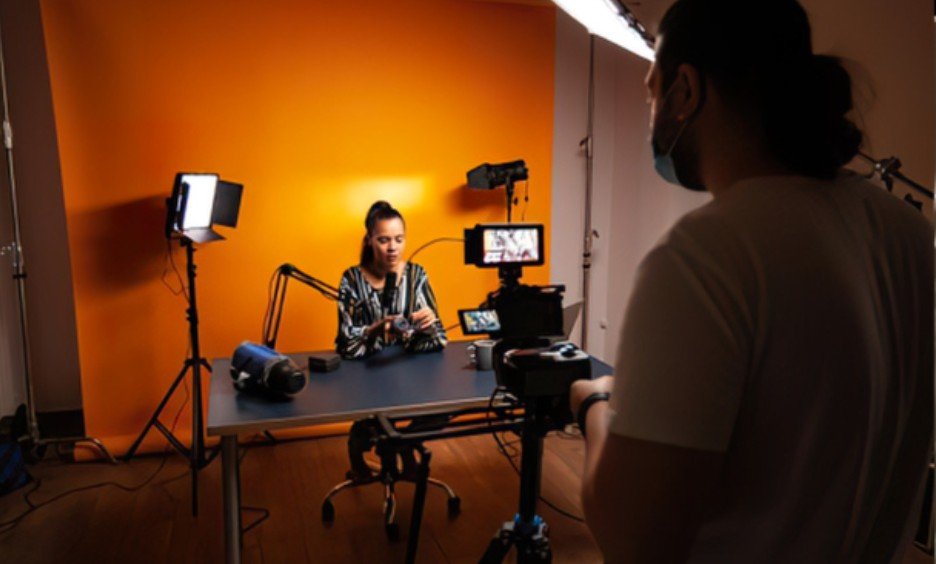
I want to catch lighting problems before recording an entire interview or tutorial. A room can look perfectly illuminated while the camera captures distracting pulses or dark stripes. Checking the recorded image matters more than trusting what my eyes see.
Understanding how to avoid flickering lights when recording video starts with matching exposure timing to the light source. Adjusting shutter speed often helps, but dimmers, LED drivers, and slow-motion settings can complicate the fix. Here is a practical approach that works through those possibilities without changing everything at once.
Why Lights Look Steady but Flicker on Camera
Many artificial lights vary in brightness faster than our eyes can easily notice. Cameras capture short exposures, which can reveal those variations as alternating bright and dark frames.
Rolling-shutter sensors read different parts of an image at different times. When illumination changes during that readout, horizontal bands can appear.
Electrical frequency influences many fixtures, but it does not explain every LED problem. Some lights use pulse-width modulation, or PWM, to control brightness. This rapidly switches their output on and off, sometimes at a frequency unrelated to the local power supply.
Start With a Short Recording Test
Before adjusting settings, record ten seconds using your intended resolution, frame rate, and lighting arrangement. Include a plain wall because uneven brightness often shows clearly across simple surfaces.
Review the saved clip at normal speed. Watch for whole-frame pulsing, moving bands, or color shifts. A clean preview does not guarantee a clean recording.
Once the lighting is consistent, capturing complementary B-roll can further strengthen your final edit; this guide on how to film B-roll that improves your video storytelling explains how to capture supporting footage that adds context and visual variety.
Lock exposure while testing so automatic adjustments cannot confuse the results. Change one setting, record again, and compare. This makes successful adjustments repeatable.
Match Shutter Speed to the Lighting
Shutter speed determines how long each exposure gathers light. A suitable exposure duration can average complete lighting cycles and reduce visible fluctuations.
Shutter speed controls how long the camera captures light during each exposure, helping reduce flicker when matched to the lighting source. It also influences motion blur and the overall look of your footage. Learn how to set shutter speed for natural motion in video to find the right balance between smooth movement and natural-looking results.
Settings for 60 Hz Lighting
Where the electrical supply operates at 60 Hz, try 1/60 or 1/120 second. For a talking-head video at 30 fps, 1/60 is a practical starting point. At 60 fps, try 1/120.
Settings for 60 Hz Lighting
Where the electrical supply operates at 60 Hz, try 1/60 or 1/120 second. For a talking-head video at 30 fps, 1/60 is a practical starting point. At 60 fps, try 1/120.
These values are starting points rather than guarantees. Individual fixtures may behave differently.
Settings for 50 Hz Lighting
For 50 Hz environments, test 1/50 or 1/100 second. Recording at 25 fps with 1/50, or 50 fps with 1/100, provides useful starting combinations.
Your exposure cannot normally exceed the frame interval. For example, 1/50 second is too long for ordinary 60 fps capture.
When You Record at 24 fps
The familiar 180-degree shutter guideline suggests approximately 1/48 second at 24 fps. However, that setting can reveal flicker under certain lights.
Try 1/60 under 60 Hz lighting or 1/50 under 50 Hz lighting. Motion blur will change slightly, but removing distracting bands may justify that tradeoff.
Isolate Lights and Check Their Dimmers
When learning how to avoid flickering lights when recording video, identifying the offending fixture is as valuable as choosing camera settings.
Switch off ceiling lights, decorative lamps, LED strips, and other sources individually. Record after each change. Mixed lighting can conceal the fact that one inexpensive bulb causes the problem.
Then test the troublesome fixture at full brightness. Some LED dimming systems produce more visible flicker at reduced output. Full power may help, although it will not fix every driver.
If full output records cleanly, manage exposure through light placement, suitable diffusion, aperture, ISO, or neutral-density filtration. Check the final setup again.
Use Video-Specific Flicker Controls
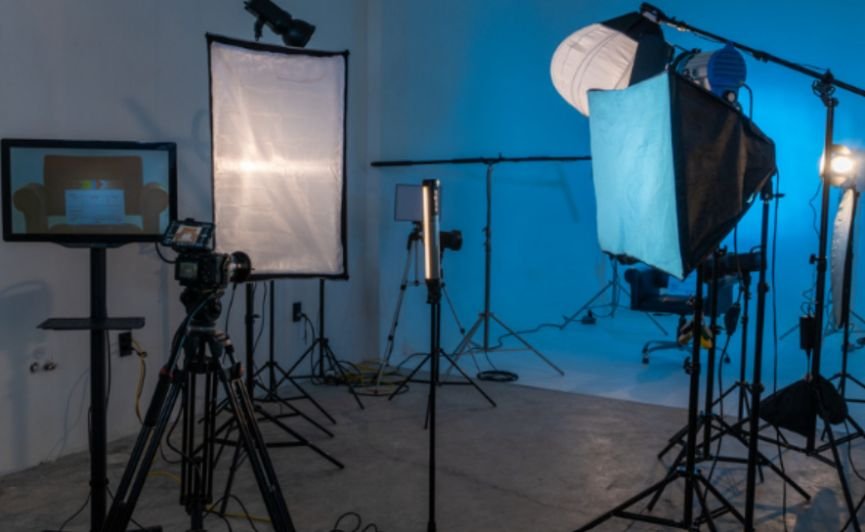
Look for settings labeled flicker reduction, variable shutter, fine shutter adjustment, or synchro scan. Availability and behavior depend on the camera. Basic regional flicker settings may help with common lighting frequencies. Fine shutter controls allow smaller timing adjustments when ordinary shutter increments leave visible bands.
Check the manual carefully: an anti-flicker option intended for still photography may not operate during video capture. Adjust while watching the image, then review an actual recording. Bands that merely stop moving can still remain visible.
Adjust Phone Recording Settings
Phone cameras often select exposure automatically, which can introduce unsuitable shutter speeds under artificial lighting. If your camera app offers an anti-banding setting, select the appropriate regional frequency. Where manual video controls are available, set the shutter speed yourself and lock exposure.
Some phones offer 25 fps recording options that can help under 50 Hz lighting. Menu names and supported modes vary by device. Exposure lock prevents automatic brightness changes; it does not independently synchronize the camera with a flickering light. Always test the resulting footage.
Test Slow Motion and Screens Separately
A light that works at 24 or 30 fps may flicker during 120 fps recording. Higher frame rates require shorter exposure windows, making variations in light output easier to capture.
Test slow motion at the exact intended settings. If adjustments fail, reduce the capture rate or use lighting verified for that recording mode.
Screens introduce another timing relationship through refresh rates and backlight behavior. If only a television or monitor shows bands, troubleshoot that display separately. Adjust shutter timing or display settings where available, then retest.
When recording outdoors, lighting is only one part of getting usable footage; learning how to record clear audio for videos outdoors can help you manage background noise and capture clearer dialogue.
Frequently Asked Questions
1. What is the quickest way to learn how to avoid flickering lights when recording video?
Start with regional shutter settings, lock exposure, and record a test. If flicker remains, isolate each fixture and test its dimmer before trying finer shutter adjustments.
2. Will buying a video light guarantee flicker-free footage?
No. Performance depends on the fixture, brightness level, frame rate, and exposure duration. Test any light under your actual shooting conditions.
3. Can editing completely remove flicker?
Sometimes software reduces brightness pulsing, but moving bands and color changes can be difficult to repair. Review a short processed sample before applying corrections throughout a project.
Final Thoughts
I would make a short lighting test part of every recording setup. A few seconds of playback can reveal problems that otherwise remain hidden until editing.
Start with shutter timing, isolate troublesome fixtures, and verify every change. Once the image looks clean, keep those settings consistent and repeat the test whenever lighting or recording mode changes.